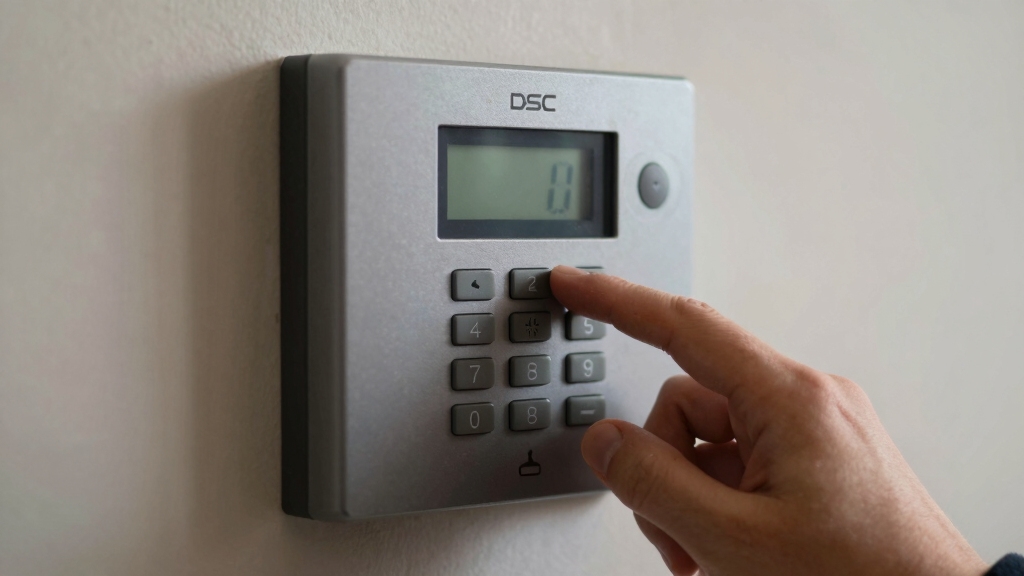

To set the time on your DSC alarm, enter programming mode by pressing [*] and your four-digit master code, not a user code. For alpha keypads, press the right arrow twice then [*].
Navigate to the time/date menu, input the time in 24-hour HHMM format, and confirm with a beep. Incorrect entries won’t be accepted.
You’ll also set the date in MMDDYY format. Follow proper steps to avoid issues, and you’ll guarantee accurate system logs and operation. More details clarify the process further.
Key Takeaways
- Enter programming mode by pressing [*] and the four-digit master code, confirmed by a beep.
- Navigate to the time/date menu using keypad-specific steps: alpha keypads require right arrow twice then [*].
- Input the time in 24-hour format as four digits (HHMM) without a colon, e.g., 1628 for 4:28 PM.
- Ensure the entered time is valid with hours 00–23 and minutes 00–59; invalid times are rejected.
- Confirm time entry by keypad beep, then save changes and exit programming mode as required.
Enter Programming Mode on Your DSC Alarm
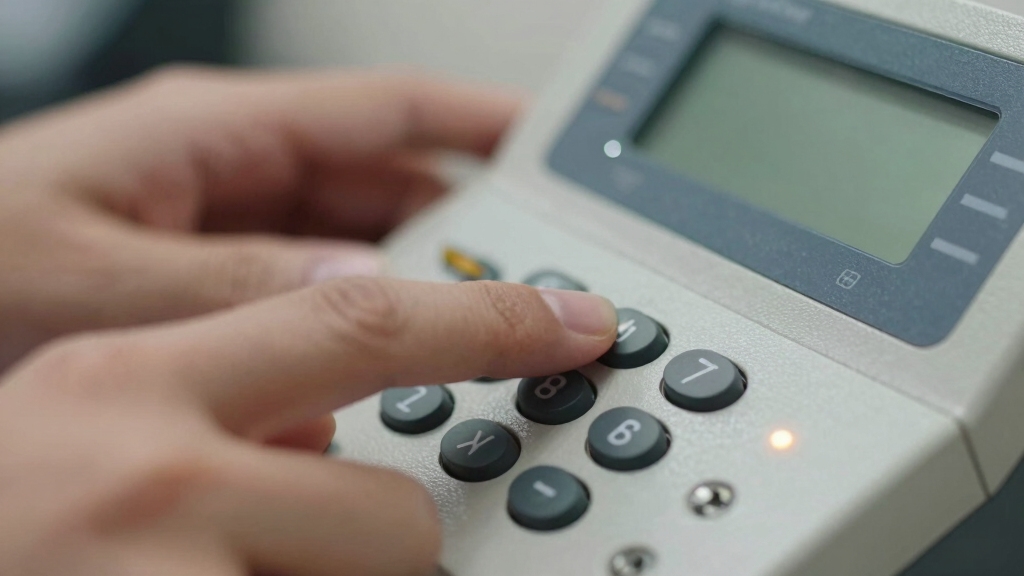
To enter programming mode on your DSC alarm, start by pressing the [*] key followed by your master code. This four-digit master code is essential; it’s not the general user code and must be entered accurately.
Begin programming your DSC alarm by pressing [*] and entering the four-digit master code precisely.
If you enter an incorrect code, the system emits a long beep, signaling the error. If you don’t know the master code, contact your installer before proceeding. After successful entry, the system confirms with a beep and allows access to programming functions. Locksmiths often provide swift relief during lockouts by using specialized non-destructive techniques.
Depending on your keypad type, navigation differs: alpha keypads require pressing the right arrow twice before [*].
Full LCD keypads use scroll keys (< or >) then [*], and non-alpha keypads accept a direct press of 1 after the master code. Idle timeouts reset the system to ready state.
Navigate DSC Keypads for Time and Date Setup
When working through DSC keypads for time and date setup, you’ll use specific button sequences depending on your keypad type. First, enter your master code after pressing [*].
Next, navigate to the time and date option using these methods:
- Alpha keypads: press the right arrow twice, then [*].
- Full LCD keypads: scroll with < or > keys until time/date appears, then press [*].
- Non-alpha keypads: press 1 directly after entering the code.
Each system confirms selections with a beep.
If you pause too long, the keypad times out and returns to the ready state. Always ensure the keypad is powered off or disconnected during maintenance to avoid electrical hazards.
Use your keypad’s feedback cues to ensure you correctly access the time and date programming menu before proceeding to input values. This navigation step is essential for accurate system configuration.
Input Time Using 24-Hour Format
Although entering the correct time format may seem straightforward, using the 24-hour military standard is essential for your DSC alarm system’s accurate event logging.
Using the 24-hour military time format is crucial for accurate event logging on your DSC alarm system.
After accessing the time and date option by pressing 1, input the time in HHMM format without a colon. For example, enter 1628 for 4:28 PM or 2000 for 8:00 PM.
Make sure you use four digits strictly, representing hours (00 to 23) and minutes (00 to 59).
Avoid AM/PM designations, as the system requires military time exclusively.
Once entered, the keypad will beep to confirm the input.
If you input an invalid time, the system will reject it.
Correct time entry guarantees precise event timestamps, critical for security monitoring and troubleshooting.
Accurate time settings are crucial for maintaining a continuous monitoring process that ensures system stability and proper function.
Set the Date on Your DSC Alarm
Setting the date on your DSC alarm guarantees accurate event logging and system operation. To set the date, you’ll start by entering programming mode with your master code, then select the time and date option. Input the date in MMDDYY format, using two digits for each segment.
For example, May 15, 2015, is entered as 051515. Follow these steps precisely:
- Press [*], enter your master code, then press 1 to select time and date settings.
- Key in the date as MMDDYY, guaranteeing each value is two digits (e.g., 100812 for October 8, 2012).
- Press [#] to save and exit programming mode.
This procedure guarantees your system logs events correctly and functions as intended.
Troubleshoot Common Time and Date Issues
If your DSC alarm displays incorrect time or date, verify the master code entry. Make certain you’re using the 24-hour time and MMDDYY date formats precisely.
Ensure the master code is correct and use 24-hour time and MMDDYY date formats for accurate DSC alarm settings.
Incorrect code entries will trigger a long beep and prevent changes. Double-check you enter time as HHMM in 24-hour format (e.g., 1628 for 4:28 PM) and date as MMDDYY (e.g., 100812 for October 8, 2012).
If using alpha or full LCD keypads, follow the proper navigation steps before inputting values. Remember, the system confirms correct input with a beep.
If errors persist, ensure you’re not using a user code instead of the master code. Contact your installer if the master code is unknown or locked after multiple failed attempts.
For consistent operation, ensure your security system is powered reliably, similar to how fresh batteries are recommended to maintain optimal device performance.
Frequently Asked Questions
Can I Set the Time Remotely on My DSC Alarm System?
You generally can’t set the time remotely on your DSC alarm system through standard user interfaces. Time adjustments require direct keypad access and master code entry for security.
Remote management tools may allow some programming but rarely include time setting due to synchronization concerns. If remote time updates are critical, check if your system supports integration with a central monitoring station or advanced remote management software that can push time settings securely.
How Often Should I Update the Time and Date on My DSC Alarm?
Think of your DSC alarm’s clock as a finely tuned conductor keeping your security orchestra in sync. You should update the time and date whenever daylight saving changes, after power outages, or quarterly for accuracy.
This guarantees event logs stay precise and alarms trigger correctly. Regular updates prevent drift from real time, maintaining system reliability.
If you notice discrepancies, adjust immediately to avoid security gaps or false alarms.
Will Power Outages Affect the DSC Alarm’s Time Settings?
Yes, power outages can affect your DSC alarm’s time settings if your system lacks a backup battery.
The internal clock relies on continuous power to maintain accurate time. When power is lost, the clock may reset, causing incorrect timestamps on events and logs.
To prevent this, make sure your alarm panel has a fully charged backup battery. After an outage, verify and, if necessary, reset the time and date to maintain system accuracy.
Can I Use a User Code Instead of the Master Code to Set Time?
You can’t use a user code to set the time; only the master code works for that. The system requires the master code to access programming functions like adjusting time and date.
If you try with a user code, you’ll get a long beep signaling it’s incorrect. So, unless you have the master code, you won’t be able to change time settings.
Contact your installer if you don’t know that code.
Does Changing the Time Affect My Alarm Event History or Logs?
Yes, changing the time on your DSC alarm directly affects the event history and logs.
The system timestamps all events using the current time setting. If the clock is incorrect and you update it, past event times may appear inaccurate or out of sequence.
To maintain precise and reliable logs, always make certain the time is set accurately. This helps with troubleshooting and verifying security events effectively.
Accurate Time Settings for a Smarter Security System
Setting the time on your DSC alarm ensures accurate logs and reliable system performance. Remember, a stitch in time saves nine; addressing time setup promptly prevents future issues.
By entering programming mode, steering the keypad, and inputting the time in 24-hour format, you maintain system accuracy.
Don’t forget to set the date and troubleshoot any discrepancies. Following these steps keeps your DSC alarm functioning at its best and your property secure.