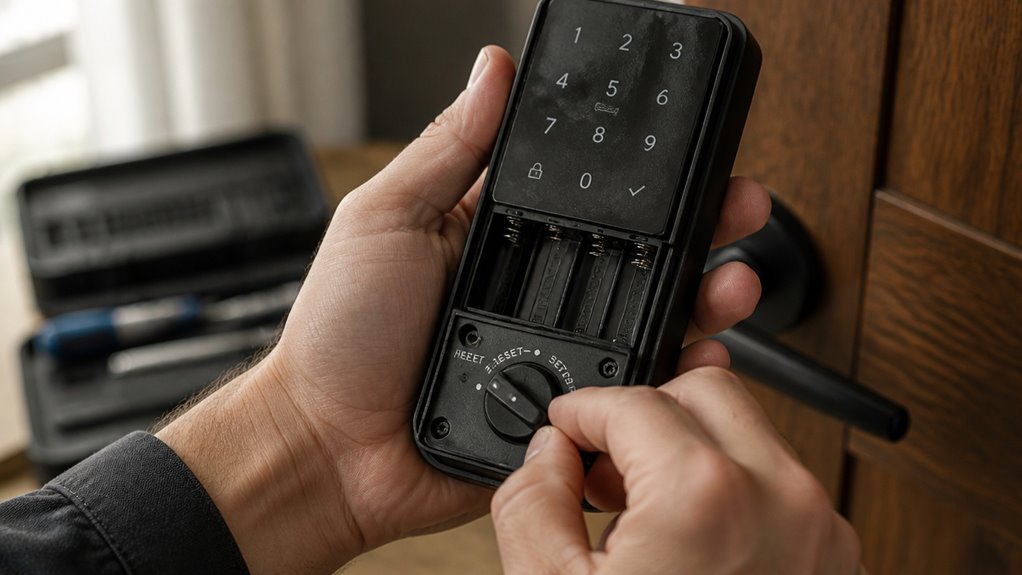

You’ll find the reset button inside the battery compartment or hidden under the lock’s interior cover. It is often recessed and requires a small tool to press.
Hold it for 5–30 seconds, sometimes while removing or reinstalling batteries, until you hear beeps or see LED flashes signaling success. This erases all codes and restores factory settings, needing full reconfiguration afterward.
Follow your model’s exact procedure closely to avoid errors and guarantee proper reset confirmation. More details cover troubleshooting and post-reset setup.
Key Takeaways
- Locate the reset button under the battery cover or inside the lock housing, often requiring a small tool to press a recessed button.
- Press and hold the reset button for 5–30 seconds, sometimes while reinserting batteries, until you hear beeps or see LED flashes confirming reset.
- After reset, all user codes and credentials erase; reprogram master and user codes to restore lock access and security settings.
- Successful resets are indicated by audible beeps, LED signals, or mechanical bolt movement confirming the lock returned to factory defaults.
- If reset fails, verify battery health, repeat the full reset sequence, and consult the lock’s manual for model-specific instructions and troubleshooting tips.
Where to Find Reset Buttons on Code Door Locks?
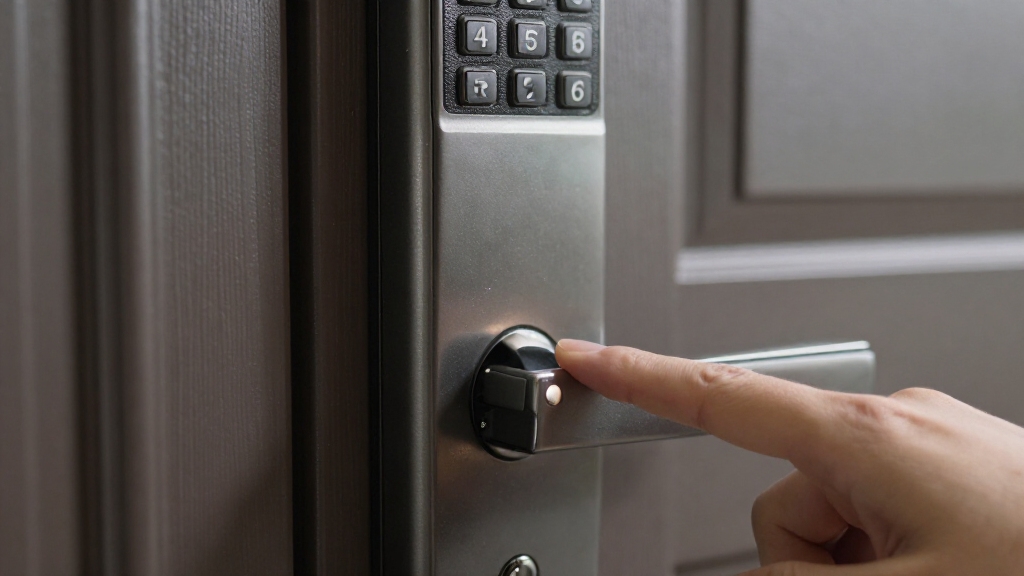
When you need to reset a code door lock, the first step is locating its reset button, which is often tucked away to prevent accidental presses.
Typically, you’ll find this button under the battery cover or inside the indoor unit housing.
In some models, you must remove the interior escutcheon to access reset pads on the PCB board.
Others place the reset interface on the rear panel or integrate it with an inside push button.
You might need a small tool like a paper clip to press recessed buttons.
Emergency power terminals or hidden access points are less common but possible locations.
Always consult the manufacturer’s manual, as many require removing the inside cover before beginning any reset procedure to locate the reset control safely and accurately.
Many electronic locks reset by pressing and holding the reset button for 5–10 seconds to restore factory defaults.
How to Perform a Factory Reset on Your Code Door Lock?
To perform a factory reset on your code door lock, the first step is to locate the reset button. You’ll usually find it under the battery cover or inside the interior unit.
Now, grab a pointed tool because you’ll need it to press and hold this button. Depending on your model, you might’ve to hold it for anywhere between 5 to 30 seconds.
Once you’ve done that, just remember to follow any additional steps, like specific button sequences or commands in the app, to complete the reset. This will help you restore the default settings and get everything back to square one!
For enhanced security, consider integrating your door lock with Z-Wave Plus technology for reliable mesh networking and smart home control.
Reset Button Locations
Although reset button locations vary widely among code door lock models, you’ll typically find them hidden beneath the battery cover or inside the indoor unit housing.
You may need to remove the battery cover, faceplate, or interior escutcheon to access the reset button or pad. Some locks place reset controls on the PCB board or rear panel, requiring careful disassembly.
Using a small tool like a paper clip to press recessed buttons is common. Knowing exact reset locations helps prevent damage during access.
Many code door locks incorporate battery-backed electromagnets to maintain functionality during power interruptions, which may influence reset procedures.
| Lock Model Type | Common Reset Location |
|---|---|
| Keypad Digital Lock | Under battery cover |
| Biometric Lock | Inside indoor housing |
| RFID Smart Lock | Rear panel or PCB board |
| Mechanical-Electronic Hybrid | Behind faceplate or escutcheon |
Factory Reset Procedures
Accessing the reset button or control is your starting point for performing a factory reset on your code door lock. Typically located beneath the battery cover or inside the interior housing, you may need to remove these panels first.
Use a paper clip or similar tool to press and hold the recessed reset button for 5 to 30 seconds, depending on your model. Some locks require you to remove and reinstall the batteries while holding the reset button to trigger the reset.
Listen for confirmation signals such as beeps or LED flashes. After reset, all user codes and credentials erase, restoring default settings. You must reprogram the lock fully.
Always consult your manufacturer’s manual to verify the exact reset sequence and avoid incomplete resets. For enhanced security, consider upgrading to smart lock systems after a reset to reduce future lockout risks.
Common Reset Codes and Button Sequences You Need to Know
You’ll often find yourself needing to use specific button sequences or default factory reset codes to restore your lock’s settings. It’s pretty straightforward!
Usually, these sequences involve pressing and holding a reset button for a set amount of time. Sometimes, you’ll even have to enter a default code afterward.
Knowing these precise steps can really save you time and hassle. Once you follow the right procedure, you’ll be able to confirm that the reset was successful through some indicator feedback. Easy, right?
Keep in mind that the reset process can vary depending on whether you have a smart deadbolt or a traditional lock, so always refer to your lock’s specific instructions.
Common Button Reset Sequences
When resetting a code door lock, knowing the common button sequences can speed up the process greatly.
Typically, you’ll begin by locating the reset button, often recessed under the battery cover or inside the interior unit.
Use a pointed tool to press and hold this button for 5 to 30 seconds, depending on your model’s specifications.
Some locks require you to enter a specific reset code or press a confirmation key, usually the lock or pound button, immediately after holding the reset button.
Successful sequences trigger audible beeps, LED flashes, or voice prompts.
Remember, failing to complete these steps precisely may result in no response or an error beep.
Always consult your lock’s manual for exact timing and button combinations to ensure an effective reset.
For added security, consider integrating your code door lock with your alarm system for comprehensive home protection.
Default Factory Reset Codes
Default factory reset codes serve as the key starting point for restoring many code door locks to their original settings. You’ll often use these codes or specific button sequences to initiate a full reset, which deletes all user data and returns the lock to default programming.
Reset procedures vary by model, but common codes and sequences give you a solid baseline.
| Lock Brand | Default Reset Code | Reset Method | Confirmation | Notes |
|---|---|---|---|---|
| Brand A | 1234 | Hold reset button 10 sec | Beep + LED flash | Battery cover access |
| Brand B | 0000 | Press *# then reset key | Voice prompt | Inside unit reset button |
| Brand C | 9999 | Long program button press | LED flash only | Requires battery removal |
| Brand D | 2580 | Sequence: #, *, reset | Beep confirmation | Use paperclip tool |
| Brand E | 1111 | Mobile app reset command | App notification | App + hardware reset combo |
For enhanced security, it is important to be aware that some electronic locks may include features to detect and prevent tampering, similar to how hidden devices can be detected in vehicles.
Physical vs App-Based Reset Methods for Code Door Locks
Physical resets demand direct interaction with the lock’s hardware. This often involves removing the battery cover or faceplate to access a recessed reset button.
Physical resets require hands-on access to the lock’s hardware, often involving battery cover removal to reach the reset button.
You’ll need a tool like a paper clip to press and hold the button for a specified duration, sometimes combined with battery removal or keypad input.
Confirmation typically comes via beeps or LED flashes.
App-based resets, conversely, require you to connect to the lock through a mobile application.
You initiate the reset sequence digitally, which may precede or follow hardware steps.
This method often provides immediate on-screen feedback and can streamline multiple lock configurations remotely.
Both methods demand adherence to manufacturer instructions, but app resets offer convenience.
In contrast, physical resets provide direct manual control.
Adding a simple installation process like that used for peepholes can enhance the security setup of your door system.
What Changes After a Factory Reset on Your Lock?
After completing a factory reset, your lock will erase all user codes, fingerprints, and stored credentials, returning its internal settings to the original factory state.
This process restores default operation modes and clears any personalized configurations, including master codes and programming parameters.
You’ll need to reconfigure the lock completely to restore access control.
Key changes you’ll notice include:
Removal of all access credentials, requiring new user code and biometric enrollment.
Reset of master and admin codes to default factory values.
Restoration of default locking behaviors, such as keypad response and RFID settings.
Understanding these changes guarantees you methodically reprogram your lock to secure your property after a reset. Locksmiths can assist in reprogramming and maintaining advanced smart locks to ensure continued security and functionality.
How to Confirm a Successful Factory Reset on Your Code Door Lock?
Verify your lock’s reset status by observing its feedback signals immediately following the procedure. Most models confirm success via audible beeps, LED flashes, or voice prompts.
Check if the keypad resets to default and ensure stored codes and credentials are erased. Some locks return the latch or bolt to the default locked or unlatched position as a physical confirmation.
| Signal Type | Expected Response | Purpose |
|---|---|---|
| Audible Beep | One or multiple beeps | Confirms reset accepted |
| LED Indicator | Flashing or steady light | Indicates reset mode entered |
| Physical Test | Bolt/latch movement | Verifies mechanical reset |
| Keypad Status | Default code prompt | Ensures data wipe completed |
Follow your model’s manual to identify these signals accurately. Ensuring proper alignment and mechanical integrity during installation is crucial for the multi-point locking system to function correctly after a reset.
Troubleshooting Reset Problems and Common Error Signals
Confirming a successful factory reset relies on recognizing specific signals from your lock. Sometimes, these signals don’t appear as expected. When your lock fails to beep, flash, or give voice confirmation, begin by checking battery levels. Low power often interrupts the reset process.
Next, make sure you’re applying the proper reset sequence exactly as required. Holding buttons too briefly or pressing incorrect combinations can cause errors. Finally, look for error signals like a single beep or rapid LED flashes. These usually indicate incomplete or failed resets.
Verify battery health and reinstall if necessary. Repeat the reset sequence, holding buttons for the full duration. Observe error beeps or LED patterns and consult troubleshooting guides.
Following these steps helps identify and resolve common reset problems efficiently.
Why You Should Always Follow Your Lock’s Manual When Resetting?
Because reset procedures vary widely between lock brands and models, you should always follow your lock’s manual exactly when performing a reset.
Each lock has specific reset locations, button sequences, and timing requirements that, if not adhered to, can cause incomplete resets or permanent lockouts.
Manuals detail essential steps like battery removal, precise button press durations, and confirmation signals such as beeps or LED flashes.
Ignoring these instructions risks erasing critical data improperly or damaging the lock’s firmware.
Additionally, some models require pre-reset conditions, like leaving the lock accessible, which manuals specify to prevent malfunction.
How to Reconfigure Your Code Door Lock After a Factory Reset?
After completing a factory reset by following your lock’s manual, you’ll need to reconfigure the lock to restore its functionality.
Begin by setting a new master code to secure administrative access.
Start by establishing a new master code to ensure secure administrative control of your lock system.
Then, enroll user codes or biometric data if your model supports it, guaranteeing only authorized users gain entry.
Finally, verify lock operation by testing the bolt or latch mechanism to confirm settings have saved correctly.
Key steps include:
Program a new master code to replace the default one erased by the reset.
Register individual user codes or fingerprints as required.
Test all programmed functions and lock status indicators for confirmation.
Following this sequence guarantees your lock is secured and operational after a factory reset, preventing unauthorized access and system errors.
Frequently Asked Questions
Can a Factory Reset Affect My Lock’s Warranty or Support Coverage?
A factory reset typically won’t void your lock’s warranty or support, as it’s a standard troubleshooting step.
However, if the reset is done improperly or causes damage, warranty claims might be affected.
Always follow the manufacturer’s instructions carefully to avoid issues.
Some brands require you to notify support before or after a reset.
Check your warranty terms to confirm any conditions related to resets and support coverage.
How Often Should I Perform a Factory Reset for Optimal Lock Performance?
You should perform a factory reset only when necessary, such as after persistent malfunctions, forgotten codes, or security breaches.
Routine resets aren’t recommended since they erase all user data and require full reconfiguration.
Instead, focus on regular maintenance like battery checks and firmware updates.
Overusing resets can cause unnecessary wear and complicate your lock’s setup.
Reserve factory resets for troubleshooting or significant security resets to maintain peak performance.
Are There Security Risks Associated With Resetting a Code Door Lock?
Yes, resetting your code door lock carries security risks. When you perform a factory reset, it erases all stored user codes and credentials, temporarily leaving the lock unsealed if not reprogrammed promptly.
During reset, the lock may remain unlatched or in a default state, exposing access. To minimize risk, reset only in secure conditions and immediately reconfigure your codes and settings to restore full protection.
Can I Back up My Codes or Settings Before Performing a Reset?
Before hitting the reset button, think of backing up your codes as saving your digital keys in a vault.
If your lock supports app connectivity, you can often export or sync your settings through the mobile app.
For non-smart locks, manual backup isn’t usually possible, so record codes physically.
Always check your lock’s manual for backup options because a reset typically wipes all stored credentials, leaving you to start from scratch.
What Should I Do if My Lock Won’T Reset Despite Following All Steps?
If your lock won’t reset despite following all steps, first make certain the battery is fully charged and properly installed.
Double-check that you’re using the exact reset procedure per your manufacturer’s manual.
Try repeating the reset while holding the button longer or pressing any confirmation buttons afterward.
If it still fails, remove and reinstall the battery, then attempt the reset again.
Contact technical support with your lock’s model for advanced troubleshooting or firmware issues.
Keep Your Code Door Lock Secure After a Reset
Resetting your code door lock might seem complex, but following the manual guarantees success.
For example, a homeowner struggling with forgotten codes restored access by locating the hidden reset button and performing a factory reset as instructed.
Afterward, they reconfigured new codes without issues. Always use precise steps: find the reset button, execute the correct sequence, and verify the reset.
This methodical approach prevents errors and secures your lock’s functionality.