
To connect to Spectrum’s 2.4 GHz WiFi, first locate the exact SSID and password on your router’s label. Ensure you identify the 2.4 GHz network if it’s separate from 5 GHz.
Enter the password exactly as shown, including case sensitivity and special characters. Confirm your device joins the correct SSID and shows a connected status.
If needed, power-cycle your modem and router to refresh the connection. Additional steps can help you optimize and secure your 2.4 GHz network setup.
Key Takeaways
- Find the Spectrum router label to identify the exact 2.4 GHz SSID and password printed on it.
- Enter the password exactly as shown on the router label, respecting case sensitivity and special characters.
- Ensure your device connects to the 2.4 GHz SSID by selecting it manually if both 2.4 GHz and 5 GHz bands appear.
- Power-cycle your modem and router by unplugging both for 30 seconds, then reconnecting modem first, followed by router.
- Verify connection status on your device and test internet access to confirm successful 2.4 GHz WiFi connection.
How to Find Your Spectrum 2.4 GHz Network Name and Password?
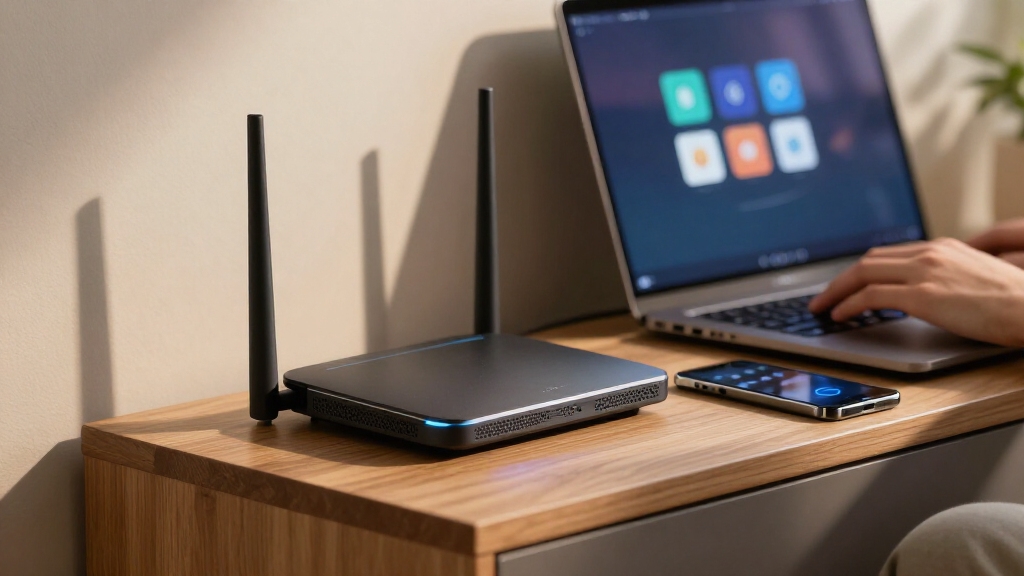
To find your Spectrum 2.4 GHz network name and password, start by checking the label on your Spectrum-issued router. This label, typically on the back or bottom, lists the network name (SSID) and password.
Some routers broadcast a single WiFi name, while others display separate SSIDs for 2.4 GHz and 5 GHz bands. If two SSIDs appear, identify the one labeled for 2.4 GHz. Your device’s WiFi settings should show network names matching those on the router label.
If only one SSID appears, the router manages band selection automatically. Confirm you’re referencing the correct Spectrum router, as model labels and network details vary. Use this information precisely to identify the 2.4 GHz network name and password before proceeding with connection steps.
Note that Spectrum no longer supports home security cameras due to their reliance on proprietary network infrastructure, which may affect compatibility with your existing devices.
Connect Your Device to Spectrum 2.4 GHz WiFi
To connect your device, start by finding the Spectrum 2.4 GHz network name. You can usually find it on your router’s label or in your WiFi list.
Once you’ve got that, go ahead and enter the exact password printed on the router when prompted. This step is crucial to ensure that you’re authenticated properly.
After you’ve entered the password, check to make sure your device confirms that it’s connected to the 2.4 GHz band. Once you see that confirmation, you’re all set to go!
Ensure your device supports the 2.4 GHz Wi-Fi band to avoid connection issues during setup.
Find Spectrum Network Name
Locating your Spectrum network name (SSID) is the essential first step for connecting your device to the 2.4 GHz WiFi band.
The SSID identifies the wireless network you want to join. Spectrum routers often label it clearly. Some routers display separate names for 2.4 GHz and 5 GHz bands, while others combine them into one.
You’ll need to find the exact SSID corresponding to the 2.4 GHz band to ensure proper connection.
To find your Spectrum network name:
- Check the router label on the back or bottom for SSID details.
- Look for separate network names if your router supports dual bands.
- Open WiFi settings on your device to view available networks.
- Match the displayed SSID with the router’s 2.4 GHz label.
- Confirm the router is Spectrum-issued to avoid confusion.
If you need to view all connected devices and their network details, you can log into your router’s Connected Devices list to verify the connection status of your device.
Enter Network Password
Once you’ve identified the correct 2.4 GHz network name, the next step is to enter the network password exactly as printed on your Spectrum router’s label.
Accuracy is critical; case sensitivity and special characters must match precisely. If the device rejects the password, recheck the label and re-enter carefully. Avoid copying errors or extra spaces.
| Step | Action | Tip |
|---|---|---|
| 1. Locate Password | Find on router label | Usually on back or bottom |
| 2. Enter Password | Type into device prompt | Match case and characters |
| 3. Verify Input | Confirm no typos or spaces | Re-enter if connection fails |
For optimal connectivity and reliability, ensure your device operates within the recommended temperature range to avoid performance issues during network access.
Following this structured process guarantees a smooth password entry for successful 2.4 GHz Spectrum WiFi connection.
Confirm 2.4 GHz Connection
After entering the network password, your device should connect to the Spectrum 2.4 GHz WiFi network automatically.
To confirm the connection, check your device’s WiFi settings for the correct SSID matching the 2.4 GHz network name on your router label.
Verify the connection status reads “Connected” or similar. If the device joins a 5 GHz band by mistake, manually select the 2.4 GHz SSID. Test the connection by opening a browser or app to ensure internet access through the 2.4 GHz band.
Verify the connected network name matches the 2.4 GHz SSID on your router label.
Confirm “Connected” status in device WiFi settings. Manually select 2.4 GHz network if automatically connected to 5 GHz.
Test internet access to validate connection. Re-enter password if connection fails or is rejected.
Many plug-in security cameras, such as the Kasa Smart EC71 and WYZE Cam OG, operate exclusively on 2.4 GHz Wi-Fi networks, making this connection essential for their setup and functionality.
How to Check Your Spectrum Router and Signal Status?
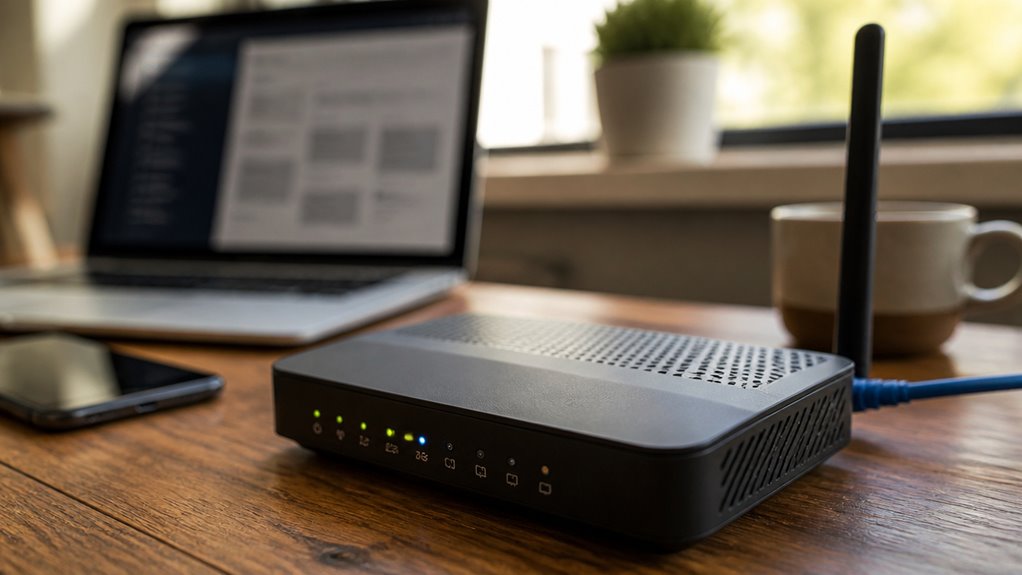
Check the physical setup and status lights on your Spectrum router to make sure it’s functioning properly before connecting to the 2.4 GHz network.
Make certain the router is plugged in and connected to the modem via Ethernet if applicable. Wait up to 10 minutes for the router’s startup sequence to complete.
Confirm that the status light is solid green, blue, or another model-specific indication of readiness. If no light appears, power-cycle the router by unplugging and plugging it back in.
Verify the router is Spectrum-issued by checking the label for network names and passwords. This label also confirms the availability of separate 2.4 GHz and 5 GHz bands.
A properly lit and labeled router guarantees you can confidently select the correct 2.4 GHz network on your device.
For enhanced security, ensure your router supports and enables WPA3 encryption to protect your wireless connections.
Troubleshoot Spectrum 2.4 GHz Connection Issues
First things first, make sure your device is connecting to the right 2.4 GHz network. Double-check the network name exactly as it appears on your Spectrum router label—this can make all the difference!
If you’re still having trouble, try power-cycling both your modem and router. Just unplug them for about 30 seconds, then plug them back in. This can help reset your network and often clears up any connectivity issues.
Lastly, when you enter your WiFi password, take a moment to do it carefully. Ensure it matches the case and characters exactly as they’re printed on the router sticker. A small typo can keep you from connecting!
Also, be aware that disabled 2.4 GHz bands on your router can prevent devices from connecting properly, so check your router settings to ensure this band is enabled.
Verify Network Name
Verifying the correct network name (SSID) is critical when troubleshooting your Spectrum 2.4 GHz connection issues. You need to confirm your device is connecting to the intended 2.4 GHz band, especially when your router broadcasts separate SSIDs for 2.4 GHz and 5 GHz.
Start by locating the router’s label to identify the exact SSID assigned to the 2.4 GHz network. Check the following to guarantee accuracy:
Match the SSID on your device’s WiFi list with the router’s 2.4 GHz SSID label. Confirm if your router uses a combined SSID or separate names for each band. Select the 2.4 GHz SSID explicitly if separate SSIDs are shown.
Re-enter the password exactly as printed on the router label. Use Spectrum’s smart-device setup to switch to 2.4 GHz if necessary.
Also, be aware that physical obstructions like thick walls or metal surfaces can weaken your WiFi signal and cause connection issues.
Restart Modem And Router
Power-cycle your modem and router to resolve common Spectrum 2.4 GHz connection issues. Start by unplugging both devices from the power source.
Wait at least 30 seconds to allow capacitors to discharge fully. Then, plug in the modem first and wait until its status light stabilizes, typically solid green or blue depending on the model.
Next, reconnect the router’s power and allow it up to 10 minutes to complete startup. This sequence refreshes network configurations and clears temporary errors affecting the 2.4 GHz band.
After both devices fully reboot, check the WiFi list on your device for the correct Spectrum 2.4 GHz SSID. If the connection still fails or the WiFi light remains off, repeat the power-cycle or consider further troubleshooting steps.
For improved security, it is also recommended to disable WPS on your router to prevent unauthorized access.
Reenter Password Correctly
If your device repeatedly fails to connect to the Spectrum 2.4 GHz network after restarting the modem and router, reentering the password correctly is the next step.
Incorrect password input is a common cause of connection failures. Verify the password exactly as printed on your Spectrum router’s label, considering case sensitivity and special characters.
Avoid copying errors by typing manually. To make certain accuracy:
- Locate the exact password on the router’s sticker (back or bottom).
- Confirm you’re connecting to the correct 2.4 GHz SSID if separate bands appear.
- Enter each character carefully, respecting uppercase and lowercase letters.
- Avoid trailing spaces or extra characters in the password field.
Retry connection after correct entry to verify successful authentication. Precise password entry resolves most Spectrum 2.4 GHz authentication issues efficiently. Additionally, ensuring your network employs strong encryption protocols such as WPA3 can prevent unauthorized access and improve connection reliability.
Switch to 2.4 GHz With Spectrum’s Smart Device Setup
When setting up a smart device on Spectrum’s network, you’ll need to switch to the 2.4 GHz band through your Spectrum account to guarantee compatibility.
Begin by signing in to your Spectrum account and navigating to the Services page. Select Internet, then choose the “Set up Smart Device” option.
From there, select “Switch to 2.4 GHz” to ensure your smart device connects using the correct frequency. This step is critical because many smart devices only support 2.4 GHz bands.
After switching, return to the device’s third-party app to complete setup. Ensure your router is powered on and broadcasting both bands if applicable.
Following this structured process will help you avoid connectivity issues and establish a stable 2.4 GHz connection for your smart home device.
How to Secure and Manage Your Spectrum 2.4 GHz Network?
Protecting and managing your Spectrum 2.4 GHz network starts with accessing your router’s settings through its web interface or the Spectrum app.
Once inside, you can configure essential security and management features to safeguard your connection and optimize performance.
Prioritize these steps:
Change the default SSID and password to unique, strong credentials.
Enable WPA3 or WPA2 encryption for robust wireless security.
Set up a guest network to isolate visitor devices from your main network.
Regularly update your router’s firmware to patch security vulnerabilities.
Monitor connected devices and disable unfamiliar or unauthorized ones promptly.
These measures help maintain network integrity, prevent unauthorized access, and ensure stable, secure connectivity on your Spectrum 2.4 GHz WiFi.
Frequently Asked Questions
Can I Use the 2.4 GHZ Band for Gaming Consoles and Smart TVS?
Yes, you can use the 2.4 GHz band for gaming consoles and smart TVs.
It offers wider coverage and better penetration through walls compared to 5 GHz, making it ideal for devices farther from the router.
However, 2.4 GHz has lower maximum speeds and more interference.
If your devices are close to the router and need faster performance, 5 GHz may be better.
For stability and range, 2.4 GHz works well.
Does 2.4 GHZ Wifi Have Better Range Than 5 GHZ?
Yes, 2.4 GHz WiFi typically offers up to 150 feet of indoor range, which is roughly double what 5 GHz provides.
You’ll benefit from better wall penetration and coverage with 2.4 GHz, making it ideal for larger spaces or devices farther from the router.
However, 5 GHz delivers faster speeds at shorter distances.
How Can I Boost My 2.4 GHZ Wifi Signal Strength at Home?
To boost your 2.4 GHz WiFi signal at home, position your router centrally and elevated, avoiding obstructions like walls or metal objects.
Reduce interference by placing it away from other electronics, such as microwaves or cordless phones.
Update your router’s firmware regularly and select channels with the least congestion using WiFi analyzer tools.
Consider adding a WiFi extender or mesh system to improve coverage in larger areas or dead zones effectively.
Are All Spectrum Routers Compatible With Older Wifi Devices?
Yes, all Spectrum routers are compatible with older WiFi devices.
They support both 2.4 GHz and 5 GHz bands, ensuring backward compatibility with older standards like 802.11b/g/n.
The 2.4 GHz band specifically caters to older devices, offering broader coverage and better penetration.
You can connect your legacy devices by selecting the appropriate 2.4 GHz network on your device’s WiFi settings and entering the password exactly as shown on the router label.
Can Interference From Other Devices Affect My 2.4 GHZ Connection?
Yes, interference from other devices can affect your 2.4 GHz connection.
This frequency band is crowded since many household gadgets, like microwaves, cordless phones, and Bluetooth devices, operate there. Their signals can cause congestion, leading to slower speeds or dropped connections.
To improve performance, you should minimize nearby electronic interference, position your router away from such devices, and consider switching to the 5 GHz band if your device supports it.
Get Your Devices Connected to Spectrum 2.4 GHz WiFi
Connecting to Spectrum’s 2.4 GHz WiFi guarantees broader coverage and better device compatibility.
For example, a small business owner improved their smart devices’ reliability by switching from 5 GHz to 2.4 GHz using Spectrum’s Smart Device Setup.
By following the outlined steps—finding your network name, connecting your device, checking router status, troubleshooting, and securing your connection—you’ll maintain a stable and secure WiFi environment tailored to your needs.