
Your security camera keeps going offline mainly due to power inconsistencies like faulty adapters or excessive cable length causing voltage drops.
Wi-Fi instability from interference, weak signals, or long distance also disrupts its connection.
Network issues like router resets, IP conflicts, or disabled bands contribute, alongside firmware bugs and hardware faults that trigger crashes.
Additionally, internet outages or cloud service disruptions impact remote access.
Understanding these factors will help you identify the exact cause and maintain stable camera performance.
Key Takeaways
- Faulty power adapters or unstable PoE ports cause frequent camera shutdowns and offline status.
- Wi-Fi interference, weak signals, or long distances disrupt camera connectivity and cause disconnections.
- Router issues like reboots, IP conflicts, or disabled 2.4 GHz band lead to camera offline problems.
- Outdated firmware or hardware damage results in crashes, unstable behavior, and intermittent camera failures.
- Internet outages, slow connections, or cloud service faults block remote access and cause offline notifications.
Power Issues That Interrupt Your Security Camera’s Connection
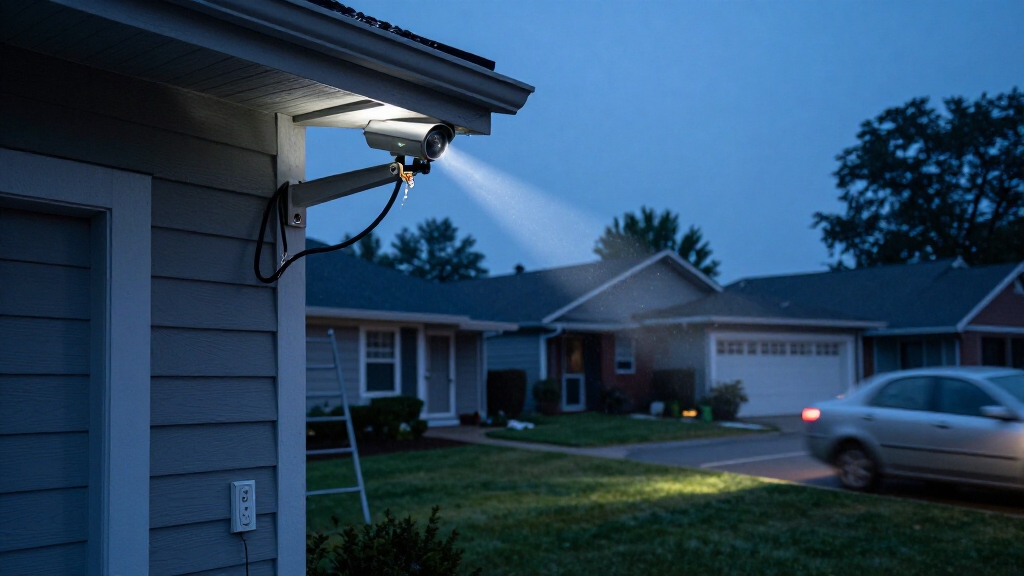
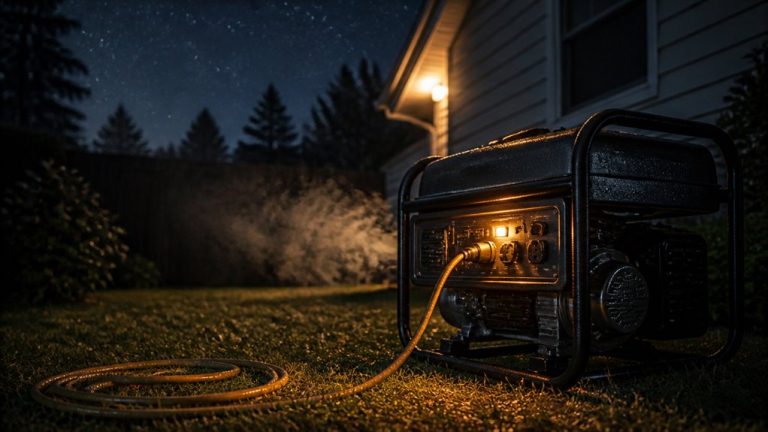
Power interruptions frequently cause your security camera to go offline unexpectedly.
You should first inspect power adapters and cables for damage or looseness. A faulty connection immediately disrupts camera operation.
If you use Power over Ethernet (PoE), verify that the PoE switch and ports supply stable power. Failures here produce sudden outages.
Underpowered or unstable adapters often trigger reboot loops, causing intermittent offline status.
Environmental factors like heat, corrosion, or physical wear can degrade hardware components. This weakens power delivery and causes unexpected shutdowns.
Check electrical outlets for tripped breakers or faults that might cut power.
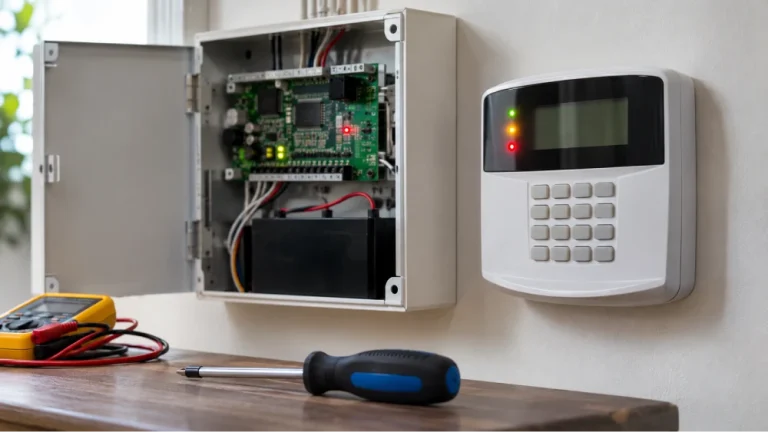
Systematically testing each element—adapter, cable, power source, and hardware integrity—helps isolate power issues.
This ensures your camera maintains continuous connectivity without unexpected offline incidents.
Additionally, excessive cable lengths can induce voltage drops, resulting in unstable power and causing your camera to lose connection intermittently, so it’s important to measure voltage levels at the camera end to confirm adequate power delivery and detect any drops in the power supply.
Wi-Fi Problems That Cause Security Cameras to Go Offline
When your security camera relies on Wi-Fi, any signal instability or interference can quickly cause it to go offline. A weak or fluctuating Wi-Fi signal interrupts continuous data transmission, forcing the camera to disconnect.
Unstable Wi-Fi signals disrupt data flow, causing your security camera to lose connection.
Physical barriers like thick walls degrade signal strength, while crowded wireless channels create contention and packet loss. Additionally, interference from household devices disrupts the radio frequency, introducing latency and dropouts.
Common Wi-Fi issues include:
- Long distance from the router, reducing signal power below operational thresholds.
- Interference from microwaves, cordless phones, or baby monitors operating on overlapping frequencies.
- Congested Wi-Fi channels causing data collisions and retransmissions, degrading connection stability.
You need to optimize signal strength and minimize interference to maintain a consistent connection and prevent your security camera from going offline. Using efficient compression can also help reduce bandwidth demands, improving connection stability for continuous recording.
Network and Router Issues That Disconnect Security Cameras
Beyond Wi-Fi signal problems, your security camera’s connection can also be disrupted by issues within your network or router setup.
Router reboots or modem resets interrupt active sessions, causing your camera to drop offline until it reconnects. Changing Wi-Fi credentials without updating the camera forces it offline due to authentication failure.
If your camera operates solely on 2.4 GHz and that band is disabled, it loses connectivity entirely. DHCP configuration changes or IP conflicts can isolate your camera by assigning unreachable addresses.
Network security measures like guest networks, firewall restrictions, or blocked MAC addresses may prevent your device from communicating, effectively cutting off its access.
To maintain continuous operation, you need to monitor these network parameters and apply consistent configurations tailored to your camera’s requirements.
Assigning a static IP address within your router’s subnet can help prevent connectivity issues caused by changing IP assignments.
Firmware Bugs and Hardware Problems Causing Camera Disconnects
Firmware bugs and hardware faults often cause security cameras to disconnect unexpectedly, disrupting surveillance and reducing reliability. You might experience random reboots, failed reconnections, or complete communication loss due to corrupted or outdated firmware.
Similarly, physical hardware issues can interrupt normal camera operation, leading to offline status. Consider these critical causes:
Firmware glitches: Outdated or buggy firmware can trigger crashes and unstable behavior, requiring immediate updates or patches.
Hardware degradation: Aging components, overheating, or water damage weaken functionality and cause intermittent failures.
Connection faults: Damaged cables, loose connectors, or defective PoE ports disrupt wired camera links, leading to sudden dropouts.
Addressing firmware and hardware problems promptly guarantees consistent connectivity and maintains the integrity of your security monitoring system. Additionally, ensuring strong cellular signal strength is essential for reliable operation in cellular security cameras.
Internet and Cloud Service Issues Affecting Camera Access
Although your camera may remain powered and connected locally, interruptions in your internet service or cloud platform can still cause it to appear offline.
Broadband outages or ISP maintenance disrupt remote access, preventing live streaming and event notifications. Even with local connectivity, slow or congested internet links degrade responsiveness and delay data transmission.
Cloud synchronization depends on stable vendor service availability; temporary cloud outages or server-side faults can block device communication, rendering the camera unreachable via the app.
You should also consider that fluctuating network latency or packet loss can trigger session timeouts. To troubleshoot, verify your internet status, test latency, and monitor vendor service alerts.
Maintaining a reliable broadband connection and confirming cloud service uptime are essential to guarantee continuous camera accessibility.
Additionally, ensuring cameras are installed at the recommended mounting height with a clear line of sight can help maintain stable signal quality and reduce connectivity issues.
Frequently Asked Questions
How Do I Reset My Security Camera Without Losing Settings?
To reset your security camera without losing settings, perform a soft reboot via its app or web interface. This restarts the device but preserves configurations.
Avoid factory resets, as these erase data. If the option is unavailable, power-cycle the camera by unplugging it for 10 seconds and then plugging it back in.
For advanced models, use a reset button with a quick tap rather than a long press. This ensures you don’t trigger default setting restoration.
Can Extreme Weather Affect My Security Camera’s Connectivity?
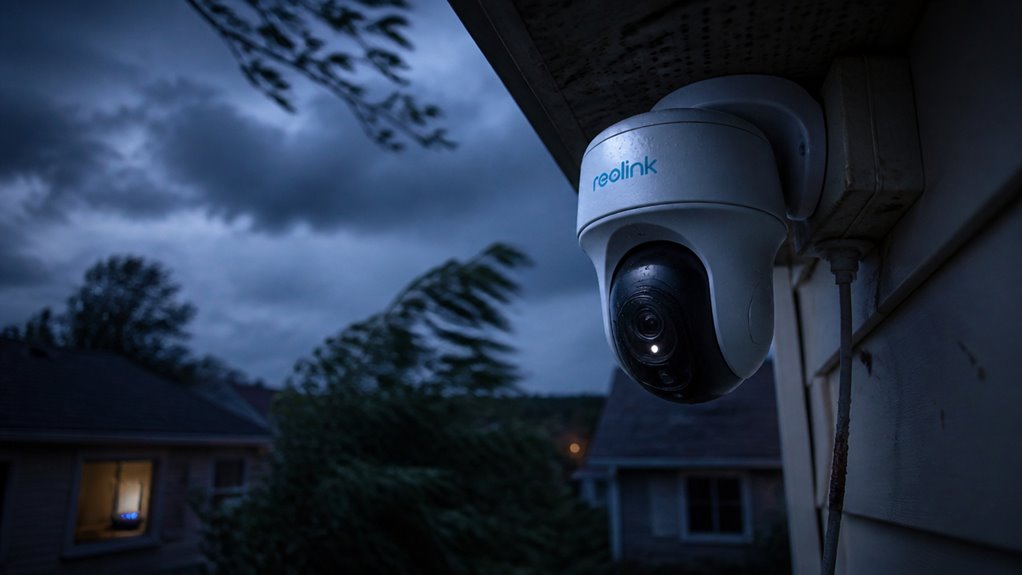
Extreme weather can disrupt your security camera’s connectivity like a sudden storm shaking loose a fragile branch.
Heavy rain, snow, or high winds can interfere with wireless signals, causing instability or dropouts.
Extreme cold or heat may affect internal components, leading to hardware malfunctions or power interruptions.
Moisture infiltration can corrode connectors and weaken signal strength.
To maintain reliability, make sure your camera is weatherproof, properly sealed, and positioned away from direct exposure.
What Is the Best Placement for Outdoor Security Cameras?
You should place outdoor security cameras where they’ve a clear line of sight, avoiding obstructions like thick walls or dense foliage that weaken Wi-Fi signals.
Mount them high to prevent tampering but angled to capture critical zones such as entry points.
Keep them away from interference sources like microwaves or cordless phones.
Guarantee proximity to your router or a strong Wi-Fi access point to maintain stable connectivity and consistent power supply for peak performance.
How Often Should I Update My Security Camera’s Firmware?
You should update your security camera’s firmware as soon as updates become available to guarantee peak performance and security.
Regularly check the manufacturer’s website or app for notifications, ideally every 1-3 months.
Firmware updates fix bugs, close vulnerabilities, and improve connectivity.
Delaying updates increases risks of crashes, offline issues, and hacking.
Automating updates, if supported, helps maintain stability without manual intervention, optimizing your camera’s reliability consistently.
Are There Specific Apps Recommended for Remote Camera Access?
You should use the manufacturer’s official app, as 85% of remote camera issues stem from third-party app incompatibility.
These apps offer optimized protocols, firmware updates, and secure connections tailored for your device. Examples include Arlo, Ring, or Hik-Connect, depending on your brand.
Avoid generic apps to reduce latency, connection drops, and firmware mismatches. Always keep your app updated to leverage bug fixes and improved remote access performance.
Fix Power, Wi-Fi, and Network Problems First
To tackle your security camera’s troubling tendency to turn offline, target power pitfalls, Wi-Fi weaknesses, and network nuisances first.
Consistently check connections, configure routers carefully, and update firmware frequently to foil frequent faults.
Don’t discount cloud complications or internet interruptions impacting your image insight.
By pinpointing and preventing persistent problems with precision, you’ll protect your camera’s continuous connection and maintain maximum monitoring mastery.
Stay sharp and stay secure.