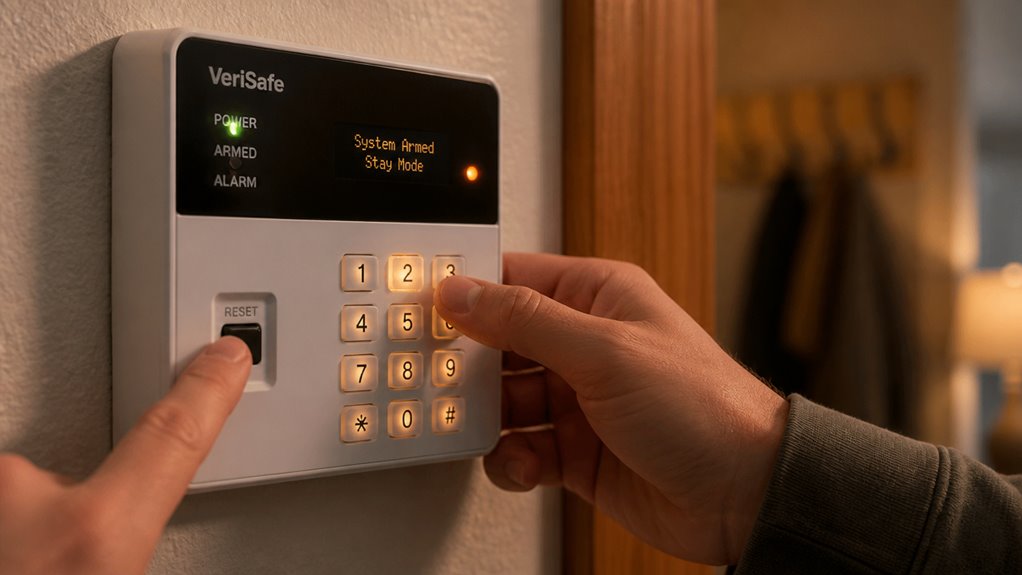

To reset your alarm system, first power cycle it by unplugging the transformer and disconnecting the backup battery.
Then wait one to two minutes before restoring power in the correct sequence.
You can also reset via the circuit breaker by switching it off for five minutes, then back on.
Use the keypad with your master code to access reset functions and navigate to reboot options.
Always test sensors and alarms afterward to confirm proper function.
More detailed steps guarantee a thorough and secure reset process.
Key Takeaways
- Disconnect the backup battery and unplug the transformer to fully power off the alarm system before performing a reset.
- Enter the master user code on the keypad to access reset options and press the reset or clear button for 15-20 seconds.
- For wired systems, reconnect the transformer first, then the backup battery to avoid power surges during system restart.
- Use the keypad navigation to select “Reboot” or “Reset,” confirming the reset with the appropriate buttons or touchscreen options.
- After resetting, verify system status, test sensors and alarms, and reconfigure codes and zones as needed for proper operation.
How to Power Cycle Your Alarm System Safely?
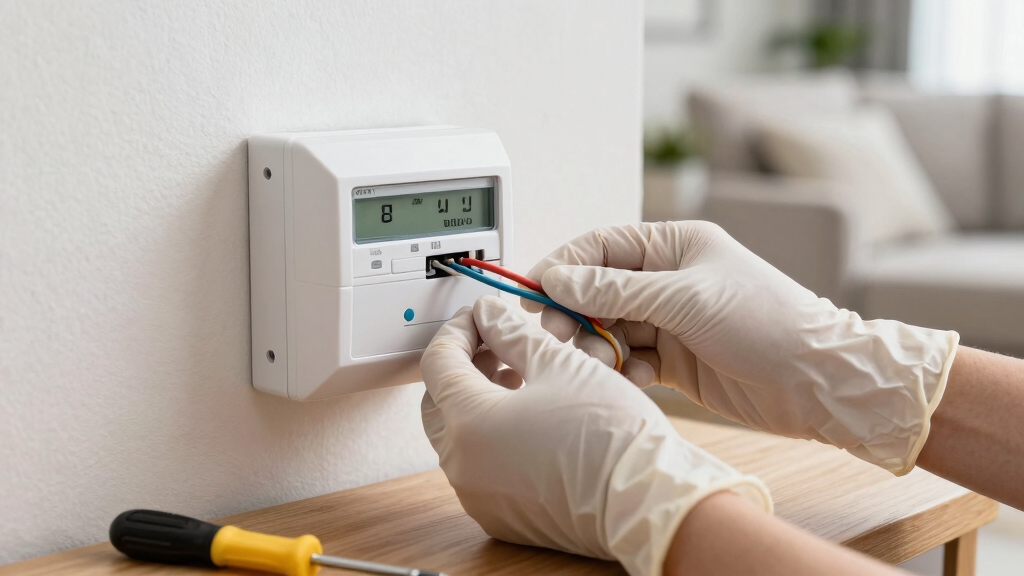
To power cycle your alarm system safely, start by disconnecting the backup battery from the system board to cut power immediately.
Next, unplug the transformer from the wall outlet to fully isolate the system from electrical current.
Wait at least one to two minutes with the system completely powered off. This allows capacitors to discharge and internal components to reset.
When restoring power, follow the correct sequence based on your system type: for all-in-one panels, reconnect the backup battery first, then plug in the transformer.
For wired systems, plug in the transformer before reconnecting the backup battery. This precise order prevents potential damage and guarantees the system initializes correctly without triggering faults or error states.
Verify the keypad display is blank to confirm complete power shutdown before reconnecting power sources.
Reset Your Alarm via Circuit Breaker
After safely power cycling your alarm system, another effective method to reset it involves manipulating the circuit breaker dedicated to the alarm panel.
First, locate the specific circuit breaker for the alarm system in your fuse box. Before proceeding, ensure the mains fuse box is safely accessible.
Locate the alarm system’s circuit breaker in your fuse box and ensure safe access before proceeding.
Switch the breaker to the off position and leave it off for at least five minutes to fully cut power. This pause guarantees the system resets completely.
After waiting, switch the breaker back to the on position to restore electrical flow. Observe the alarm panel screen; it should power on and display no error lights, confirming a successful reset.
If errors persist, consider other reset methods or professional assistance. Performing a Power Cycle Reset by disconnecting both the backup battery and transformer for 30 seconds may also help clear transient errors.
How to Reset Your Alarm Panel Internally?
Access your alarm panel’s reset function by entering the master user code on the keypad.
Once inside the menu, locate the button labeled “Reset” or “Clear” on the panel’s face or within the settings.
Press and hold this button for 15 to 20 seconds until the panel confirms the reset.
If necessary, use the security key or a small tool to open the control panel’s cover to access internal components.
For a hard reset, disconnect one wire from the main backup battery inside the panel, wait a moment, then reconnect it.
This internal reset clears error states and restores default system operation without removing external power sources.
This ensures the panel restarts properly with saved user configurations intact.
If you encounter persistent issues, consider performing a master reset procedure as outlined in the system’s manual to fully restore factory settings.
Reset and Navigate Alarm Keypad Buttons
Locate the “System” or “System Status” button on your alarm keypad to begin steering the reset process. This button is your gateway to traversing the system menu and controlling reset functions efficiently. If your system lacks a physical reset button, you’ll find reset options within the menu.
Start by finding the “System” or “System Status” button to navigate and manage your alarm reset options easily.
Follow these steps to reset and traverse your alarm keypad buttons:
- Press the “System” button twice quickly to silence any active alarms or beeps.
- Enter your master user code to access the settings menu securely.
- Traverse to the “Reboot” or “Reset” option using arrow keys or touchscreen.
- Confirm the reset by pressing the “Off” button twice or selecting “Confirm.”
This precise sequence guarantees a controlled and effective system reset. After resetting, it is important to verify system status and functionality via keypad feedback to ensure proper operation.
Remove and Replace the Backup Battery
Your alarm system’s backup battery plays a crucial role in maintaining power during outages. Knowing how to remove and replace it’s essential for uninterrupted operation.
Begin by disconnecting the small, black, square-shaped backup battery box attached to the circuit board. After removal, wait 20 seconds to allow internal capacitors to discharge fully.
Check the display panel for low-battery warnings. If present, install a completely new battery. Replace the backup battery every 12 to 15 months to guarantee peak performance.
When installing, securely reconnect the battery wires to the circuit board, confirming proper polarity and firm connections. Finally, close the control panel carefully to avoid damaging internal components.
This procedure guarantees your system stays powered during outages and resets correctly without losing essential data. Always disconnect the backup battery first to fully cut system power and avoid electrical issues during maintenance, as recommended in Safely Disconnecting Power.
Maintain Alarm System Power and Battery
To keep your alarm system powered up, the first step is to handle the backup battery correctly. Make sure to disconnect it before you do any power cycling.
Now, when it comes to power cycling, it’s really important to follow the right steps. Unplug the transformer and wait for about one to two minutes before you plug it back in. This little pause allows for a complete reset and helps avoid any electrical hiccups when your system restarts.
Taking these simple steps will help keep your alarm system running smoothly! Additionally, always use an official replacement backup battery to ensure compatibility and maintain system integrity.
Backup Battery Handling
Maintaining the backup battery guarantees your alarm system remains operational during power outages. It prevents system failures and ensures uninterrupted protection.
You must regularly inspect and replace the backup battery. A weak or dead battery compromises your system’s reliability and can lead to false alarms or shutdowns.
Follow these steps to handle the backup battery correctly:
- Remove the backup battery box carefully from the circuit board.
- Wait at least 20 seconds to allow capacitors to discharge fully.
- Replace the battery every 12 to 15 months or immediately if a low-battery warning appears.
- Reconnect the battery wires securely before closing the control panel.
These precise actions help maintain your alarm’s power integrity and safeguard your home continuously. Pressing *2 and looking for trouble code 1 can help identify low backup battery situations early.
Power Cycling Procedures
Power cycle your alarm system by disconnecting both the backup battery and the transformer to fully cut power to the unit.
First, remove the backup battery from the system board to immediately shut down the panel. Next, unplug the transformer from the wall outlet to stop electrical current flow.
Wait one to two minutes to allow residual power to dissipate.
For all-in-one panels, reconnect the backup battery before plugging the transformer back in.
For wired systems, reverse this order: plug the transformer in first, then reconnect the backup battery. This sequence prevents power surges and assures proper system reboot.
After restoring power, verify the panel screen is active with no error indicators before proceeding with additional resets or configuration steps.
Regular maintenance and proper power cycling help ensure system longevity and reliable operation of your alarm system.
Test Alarm System Sensors and Alarms After Reset
A thorough test of all sensors and alarms guarantees that your system operates correctly after a reset. You need to confirm each component responds accurately to maintain security integrity.
- Activate each sensor manually: doors, windows, motion detectors. Verify the alarm triggers without delay.
- Press the test button on smoke and carbon monoxide detectors to check signal transmission to the control panel.
- Observe the control panel for error messages or unresponsive zones, indicating sensor faults or communication issues.
- Confirm the alarm sounds clearly and loudly, guaranteeing all audible devices function as intended.
Performing these checks immediately after a reset guarantees your alarm system is reliable and ready to protect your property. Additionally, reviewing the panel status screen after testing helps identify any unresolved trouble signals or alarm memory that requires clearing.
Reconfigure Alarm Codes and Zones After Reset
Start by accessing your alarm system’s programming menu to update or restore user codes and zone configurations after a reset.
Enter the master user code to open full system access. Navigate to the user management section to set new alarm codes or reinstate previous ones, making certain each code is unique and secure.
Next, proceed to zone configuration to verify sensor assignments and zone labels are accurate. Adjust zone settings to suit your security needs, such as triggering delays or alarm responses.
Save all changes before exiting the programming menu. Finally, test each zone to confirm proper communication with the control panel.
This precise reconfiguration guarantees your alarm system operates correctly and maintains peak security after the reset process. For persistent alarm issues after resets, it is advisable to seek professional help to avoid further complications.
Tips for Long-Term Alarm System Power Reliability
After you’ve reconfigured your alarm codes and zones, maintaining consistent power supply becomes a key focus to guarantee uninterrupted system operation.
To make certain long-term power reliability, follow these essential tips:
Ensure lasting power stability by following these essential maintenance and protection tips.
- Regularly replace backup batteries every 12–15 months to prevent system failures during outages.
- Inspect transformer connections and circuit breakers periodically for wear or loose wiring to maintain stable power flow.
- Schedule routine system tests, including sensor checks and panel resets, to detect and resolve power-related anomalies early.
- Use surge protectors to shield the alarm system from voltage spikes that can damage internal components.
Implementing these measures helps you avoid unexpected downtime, secures your property continuously, and extends the lifespan of your alarm system’s critical hardware components.
Frequently Asked Questions
Can Resetting the Alarm System Erase All Stored Security Footage?
Resetting your alarm system typically won’t erase stored security footage because video data is usually saved on separate devices like DVRs or cloud storage.
However, if your system integrates storage within the control panel and you perform a factory reset or disconnect power improperly, you risk losing footage.
Always back up recordings before resetting. Consult your system’s manual to understand how resets affect data storage to prevent accidental loss.
How Often Should I Reset My Alarm System for Optimal Performance?
Think of your alarm system like a finely tuned engine. It doesn’t need constant resets, but a regular tune-up keeps it running smoothly.
You should reset your system every 6 to 12 months or after firmware updates and power interruptions. This clears glitches and maintains peak performance.
Always follow manufacturer instructions for resets and test sensors afterward to verify everything functions properly. This prevents false alarms and assures strong security.
Will Resetting the Alarm System Notify the Monitoring Service?
Resetting your alarm system typically doesn’t notify the monitoring service unless the system triggers an alarm event during the reset.
To avoid false alerts, disable monitoring communication before resetting.
Always follow your provider’s protocol for resets, especially for monitored systems.
After resetting, verify that all sensors and zones are responsive to prevent unintended signals.
If unsure, contact your monitoring service to confirm the proper reset procedure without triggering notifications.
Can I Reset the Alarm System Remotely via Smartphone App?
You sure can reset your alarm system remotely via a smartphone app, like having the control panel in your pocket.
First, open the app and log in with your user credentials.
Navigate to the settings or system menu, then select the “Reboot” or “Reset” option.
Input your user code if prompted, and confirm the reset.
This method guarantees you can manage your system precisely, even when you’re miles away.
What Should I Do if the Alarm System Fails to Reset Properly?
If your alarm system fails to reset properly, first power cycle it by disconnecting the backup battery and unplugging the transformer.
Wait two minutes before restoring power in the correct sequence. Next, try a hard reset by pressing and holding the reset button or disconnecting a main battery wire inside the panel.
If issues persist, test all sensors, check wiring connections, and consult the manufacturer’s troubleshooting guide or contact technical support for assistance.
Final Checks After Resetting an Alarm System
Resetting your alarm system is like rebooting a computer. It clears glitches and restores smooth operation. Just as a laptop runs best after a proper restart, your alarm’s performance depends on correctly cycling power and updating settings.
By following these steps precisely, you ensure your system stays reliable and responsive. Remember, consistent maintenance and testing prevent surprises, keeping your security as solid as a fortress. Don’t skip these essential resets; they’re your system’s lifeline.