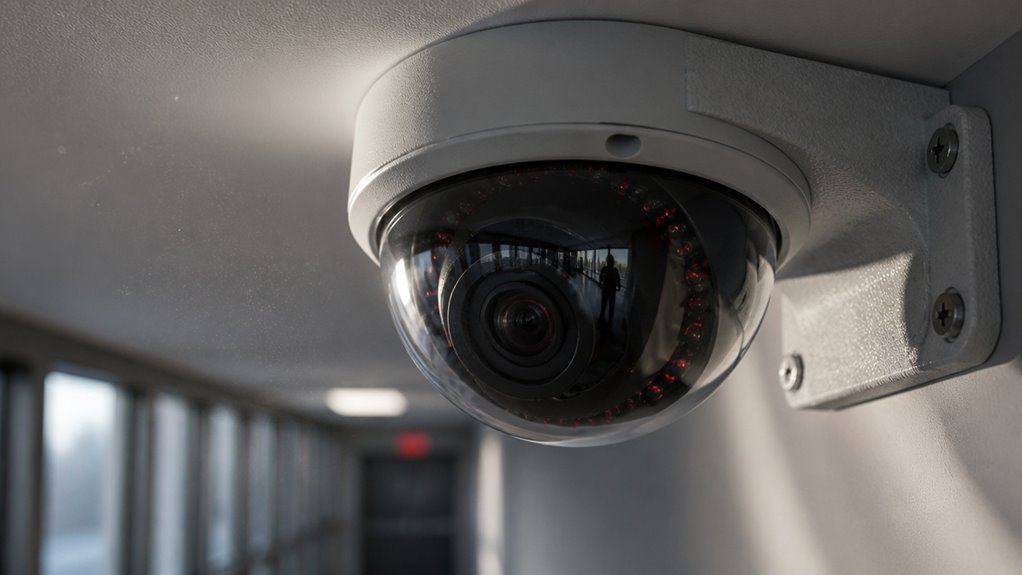

You can tell if a security camera is on by checking its LED indicators. Solid lights mean power, while blinking often signals recording or motion detection.
Use your smartphone camera to spot faint infrared night-vision glows near the lens. Listen for quiet motor sounds or subtle movements.
Verify power connections or warmth on the device. Network apps or router dashboards show active status and streaming.
These combined cues help you accurately confirm a camera’s operation and recording state. More details reveal deeper detection methods.
Key Takeaways
- Solid or blinking LED lights indicate the camera is powered on, with blinking patterns often signaling active recording or motion detection.
- A faint red or purplish infrared glow near the lens confirms night-vision IR emitters are active.
- Physical signs like slight camera movement, soft motor sounds, or warmth in the housing suggest operational status.
- Checking the camera’s companion app or network dashboard reveals live status, recording activity, and connectivity.
- Presence of powered connections (plugged cables or PoE) alongside LED or IR indicators confirms the camera is likely on.
Identifying Power and Activity Lights on Security Cameras
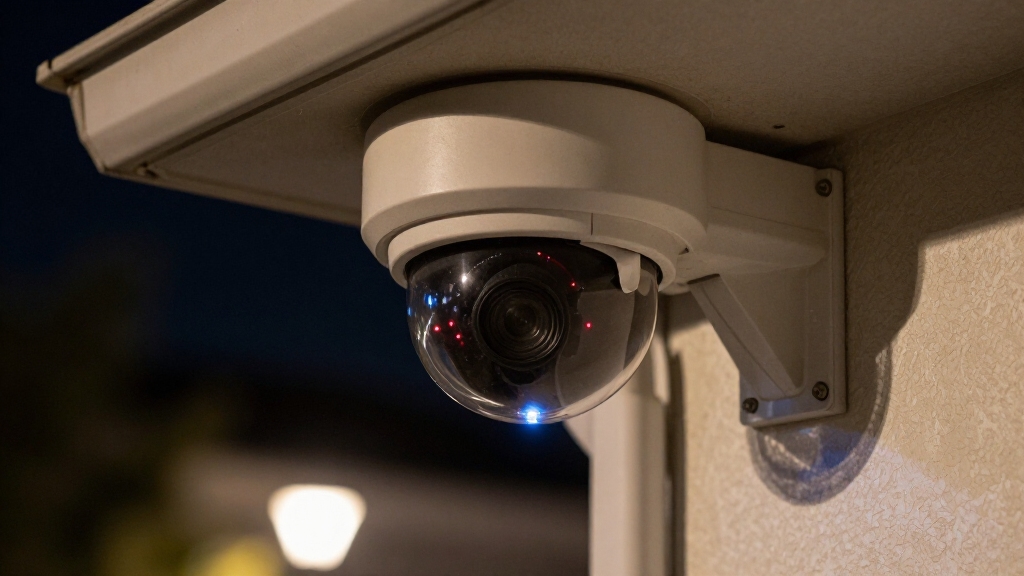
Security cameras frequently use visible status LEDs to indicate power and activity, making it easier for you to determine if the device is operational.
Typically, solid red, green, or blue LEDs signify that the camera is powered on. Blinking lights often indicate active recording, motion detection, or data transmission.
If no lights are visible, the camera might be off, in sleep mode, designed to conceal indicators, or use a non-LED status system.
Since LED colors and blinking patterns vary by manufacturer, you should consult the camera’s technical documentation to interpret these signals accurately.
Observing these LED indicators provides a direct, immediate way to verify a camera’s power state and operational status without relying on external devices or software interfaces.
For enhanced reliability, it is also important to verify the camera’s firmware updates regularly, as these can affect power management and status indicators.
Smartphone Methods to Detect Hidden Camera Indicators
You know, one cool trick you can try with your smartphone is using its camera to spot hidden cameras. Just point your camera at what you suspect might be a hidden camera, and you might see a faint red or purplish glow. That glow comes from infrared night-vision, which our eyes can’t pick up.
But wait, there’s more! There are also companion apps out there that can give you real-time updates. These apps can tell you if a camera is online, whether it’s recording, or even if it’s detecting motion. For more reliable detection, combining smartphone methods with lens and RF detection devices can help identify both active and dormant hidden cameras.
Detecting Infrared Glow
Often overlooked by the naked eye, the infrared (IR) glow emitted by night-vision cameras can be detected using a smartphone camera.
Most smartphones’ cameras are sensitive enough to capture the faint red or purplish IR light that security cameras emit to illuminate dark areas.
To detect this, simply open your smartphone’s default camera app and scan the area where you suspect a hidden camera.
If you see a small, steady or blinking glow that isn’t visible to your naked eye, it likely indicates active infrared illumination.
This confirms the camera is powered and capable of recording in low light.
Note that detecting IR glow doesn’t guarantee footage is being stored, but it does verify the camera’s night-vision function is operational.
However, be aware that IR light often reflects off glass surfaces, which can cause glare and false detections in some environments, so understanding IR reflection effects can improve detection accuracy.
Using Camera Apps
Apps designed for security cameras let you quickly check their status and confirm if they’re active. These apps connect to the camera’s network, providing real-time data on its operational state.
When you open the app, look for indicators like live video feeds, motion alerts, or recording status. These signals confirm the camera is powered and monitoring.
To effectively use camera apps for detection, keep in mind:
Real-time streaming: Live feeds updating continuously prove the camera is on and transmitting.
Status indicators: Labels such as “Online,” “Armed,” or “Recording” show active monitoring modes.
App permissions: If you can’t access the app or the device’s network, you may need physical checks for confirmation.
Using apps offers a precise, efficient method to verify if a security camera is operational. Additionally, many IP cameras assign their address via DHCP in the network, allowing apps to discover and connect to them automatically.
What Infrared Night Vision Glows Reveal About Security Camera Status?
Infrared night vision glows frequently serve as a clear indicator that a security camera is powered and operational in low-light conditions. When you spot a faint red or purplish glow near the lens, it usually means the infrared (IR) emitters are active. This enables the camera to capture images in darkness.
However, this glow confirms power and IR functionality, not necessarily that footage is being recorded.
Cameras with proper infrared illumination design help maintain image clarity even in adverse weather conditions.
| Glow Color | Meaning |
|---|---|
| Faint red/purple | IR emitters active |
| No glow | IR off or sufficient light |
| Bright red | Possible IR overload |
| Flickering glow | IR emitter malfunction |
Use this IR glow as one technical cue among others to verify camera status reliably.
How Camera Movement and Motor Sounds Indicate Activity?
After identifying the infrared glow as a sign of power and night vision capability, you can look for physical movement and sounds to assess a security camera’s activity.
Pan-tilt cameras often make subtle adjustments, repositioning to track motion or perform scheduled scans. These movements, paired with soft motor whirring, strongly indicate the camera is operational.
Fixed cameras usually lack this cue, so movement is a more reliable sign on motorized models.
Pay attention to:
- Slight lens or housing shifts when you move nearby
- Quiet, mechanical sounds signaling motor engagement
- Repetitive repositioning patterns suggesting active monitoring
These tactile and auditory clues help confirm activity but don’t guarantee continuous recording. Some cameras move only during setup or patrol intervals.
For improved monitoring, many systems use motion detection triggers that activate camera movement and recording when activity is detected.
Checking Power Sources and Heat to Confirm Camera Operation
Examine the camera’s power connections and physical temperature to verify its operational status. Look for plugged-in power cables, PoE (Power over Ethernet) connectors, or battery indicators showing active charge.
A warm camera housing often indicates internal components are energized, confirming power flow. However, power presence alone doesn’t guarantee recording, but it’s a critical sign. You can carefully feel the device’s temperature without touching sensitive optics or wiring.
| Emotion | Technical Sign |
|---|---|
| Relief | Secure power source |
| Confidence | Warm housing |
| Doubt | Unplugged cables |
| Concern | Cold, unpowered unit |
| Assurance | Active battery status |
Checking these physical signs helps you confirm the camera is indeed powered and likely operational. Proper battery management systems can also help ensure continuous operation by optimizing charging and preventing power interruptions.
Recognizing Security Camera LED Patterns That Indicate Recording
Once you confirm a camera has power and warmth, the next step is to interpret its LED signals. These lights often reveal if the camera is actively recording. Focus on LED patterns near the lens or housing: solid colors typically mean the camera is on, but blinking lights usually indicate recording or motion detection.
However, patterns can vary by brand, so consult the specific model’s documentation for exact meanings. Look for these key LED behaviors:
A steady red, green, or blue light signals power and readiness. Rhythmic blinking often correlates with active recording or data transmission. Motion-triggered LED changes suggest event-based recording is engaged.
Understanding these signals sharpens your ability to identify an actively recording security camera. For optimal performance and security, it is important to maintain motion detection settings to minimize false alarms and ensure relevant event capture.
Combining Visual Clues and App Data to Confirm Camera Status
While visual indicators like LEDs and infrared glows provide important hints about a security camera’s status, combining these clues with data from companion apps or network dashboards offers a more definitive confirmation.
You can verify if a camera is online by checking its live feed in the app; real-time updates confirm active operation. App dashboards often display status messages such as “armed,” “recording,” or “motion detected,” which supplement LED signals.
Network tools can reveal active camera connections, helping you confirm power and transmission. Matching observed LED patterns and infrared activity with app data guarantees accuracy, especially since light behaviors vary by model.
Additionally, each device’s unique UID identifier embedded in its hardware helps ensure secure authentication and accurate status reporting through the app.
Troubleshooting When a Security Camera Shows No Obvious Signs of Being On
If your security camera shows no obvious signs of being on, such as LEDs or app indicators, you’ll need to rely on alternative methods to diagnose its status.
Start by verifying power sources. Check for active power cables, PoE connections, or battery indicators.
Next, listen closely for soft motor sounds or whirring that suggest mechanical activity.
Finally, observe any subtle movements if it’s a pan-tilt model, as these might indicate responsiveness to nearby motion.
Confirm the presence of power and warmth in the device housing to make sure it’s energized.
Use a smartphone camera in low light to detect faint infrared night-vision glow around the lens.
Check your network or router dashboard for any active device connections linked to the camera.
Placing the camera near the router during initial setup can also help confirm stable pairing and proper connectivity.
These steps help you troubleshoot effectively when visual cues are absent.
Additional Tips for Confirming Your Security Camera Is Recording
To check if your security camera is recording, you can look for a few visual indicators. Things like LED lights and infrared glow are great clues. Plus, if you have a companion app, you can connect to it for real-time updates.
Just pop open the app to see the live feed and confirm the recording status. It’s a smart way to ensure you’re actively monitoring your space.
Combining Visual Indicators
Frequently, relying on a single visual cue isn’t enough to confidently determine if a security camera is recording. You need to combine multiple indicators to form a clearer picture of the camera’s status.
For example, a solid LED alone may indicate power but not active recording. Pairing that with an infrared glow or subtle mechanical movement boosts your confidence the camera is operational and capturing footage.
Look for these combined signs:
Continuous or blinking LED patterns alongside a faint infrared night-vision glow show active sensors.
Slight camera adjustments or motor sounds coupled with LED activity indicate responsive tracking.
Visible power connections plus rhythmic light changes triggered by motion confirm event-based recording.
Leveraging App Connectivity
Combining visual indicators offers valuable clues. App connectivity provides direct confirmation of your security camera’s recording status. Most cameras link to companion apps that display real-time status, including live view, recording activity, and motion alerts.
You can verify if the feed is updating and check recording schedules or manual triggers. Network dashboards also reveal active camera connections, reinforcing app data.
| Feature | What to Check | Confirmation Indicator |
|---|---|---|
| Live View | Feed refresh rate | Smooth, real-time updates |
| Recording Status | App dashboard symbol | “Capturing” or “Armed” status |
| Motion Detection | Event logs or alerts | Recent triggered activity |
| Network Connection | Router device list | Camera IP and active session |
Using app connectivity alongside physical signs guarantees accurate assessment of your camera’s operational state.
Frequently Asked Questions
Can Security Cameras Operate Silently Without Any Visible Indicators?
Yes, security cameras can operate silently without visible indicators. Some models lack LEDs or infrared glow to avoid detection, especially covert cameras.
They often rely on internal recording and network transmission without emitting light or sound. You won’t hear motor noises or see status lights.
You may need to check app connectivity, power sources, or network activity to confirm if they’re on. This stealth design prioritizes discretion over user feedback.
Do All Security Cameras Have Night Vision Capabilities?
Not all security cameras have night vision capabilities; about 70% of consumer models include infrared illumination for low-light conditions.
If you need reliable surveillance around the clock, choose cameras with built-in IR LEDs or low-light sensors. These emit a faint red or purplish glow in darkness, enabling clear footage.
Cameras without night vision rely on ambient lighting and perform poorly in total darkness, limiting their effectiveness during nighttime.
How Do Cloud-Based Cameras Store Recorded Footage Securely?
Cloud-based cameras store footage securely by encrypting video data during transmission and storage, using protocols like TLS and AES.
You’ll rely on cloud providers that implement multi-factor authentication, secure data centers, and regular security audits to protect your recordings.
Access controls guarantee only authorized users can view footage.
Backup and redundancy features prevent data loss, while privacy policies govern data handling, keeping your footage safe and confidential in the cloud environment.
Can a Security Camera Be Remotely Disabled by Hackers?
Yes, a security camera can be remotely disabled by hackers if it has vulnerabilities like weak passwords, outdated firmware, or unsecured network access.
To protect yourself, use strong, unique passwords and enable two-factor authentication.
Keep firmware updated, segment your network, and monitor device activity to detect anomalies.
Employing encryption and reputable security protocols reduces the risk of unauthorized access and remote disabling of your camera system.
What Legal Restrictions Apply to Recording With Security Cameras?
Think of your security camera as a watchful guardian bound by invisible chains. Those chains are legal restrictions.
You must respect privacy laws, avoiding recording in places where people expect privacy, like bathrooms or private homes without consent.
Federal and state laws often require you to notify or get permission before recording audio or video.
You’re also responsible for securely storing footage and ensuring it’s not misused or publicly shared without proper authorization.
Check Lights, Infrared Glow, and Camera Movement
You might glance at the power light just as it flickers, coinciding with a subtle motor whir. These small signals confirm your security camera’s active status.
Combine what you see with app notifications, infrared glows, and heat detection to form a complete picture. When these indicators align, you’ll know the camera isn’t just present; it’s recording.
Trust these technical clues to guarantee your security system is working exactly when you need it.