
To set up your Ring Alarm system, first download the latest Ring app and create an account with your home details.
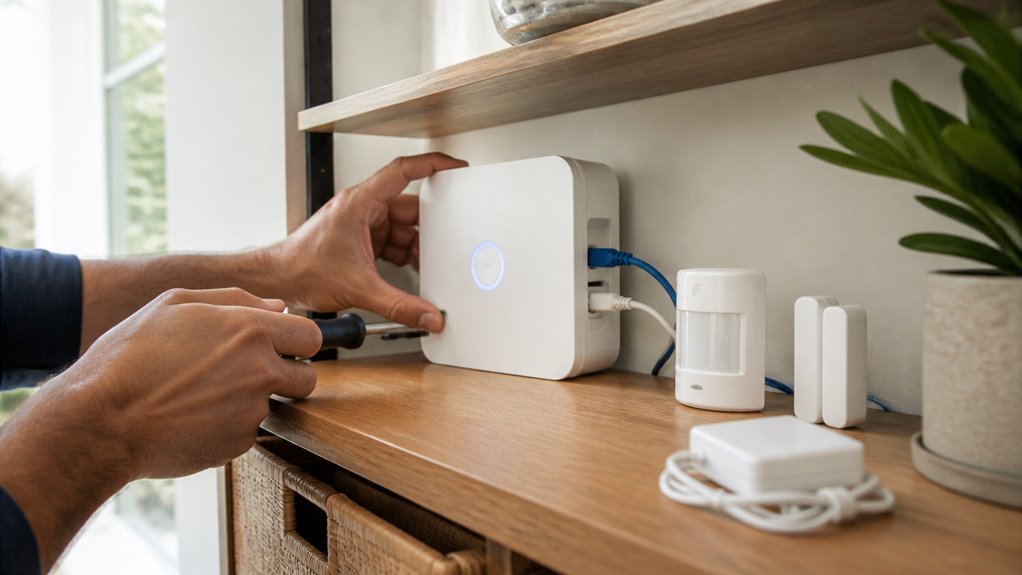
Place the base station centrally near power and a strong Wi-Fi or Ethernet connection. Power on the base station and follow the app to pair it.
Then add sensors one at a time by scanning QR codes and positioning devices strategically for best coverage.
Assign clear names and create secure access codes. Continue to explore tips for optimizing placement and managing your system effectively.
Key Takeaways
- Download and update the Ring app, then create or sign in to your Ring account with home details before starting setup.
- Position the base station centrally with power access and strong Wi-Fi or Ethernet for optimal connectivity and siren audibility.
- Launch the Ring app, power on the base station, press the pairing button, then connect to your Wi-Fi or Ethernet network.
- Remove plastic tabs from sensors to activate, follow app prompts to pair and mount sensors on clean surfaces with proper alignment.
- Assign clear, descriptive names to devices in the app and create unique access codes for secure system arming and disarming.
Get Your Home and Account Ready for Ring Alarm
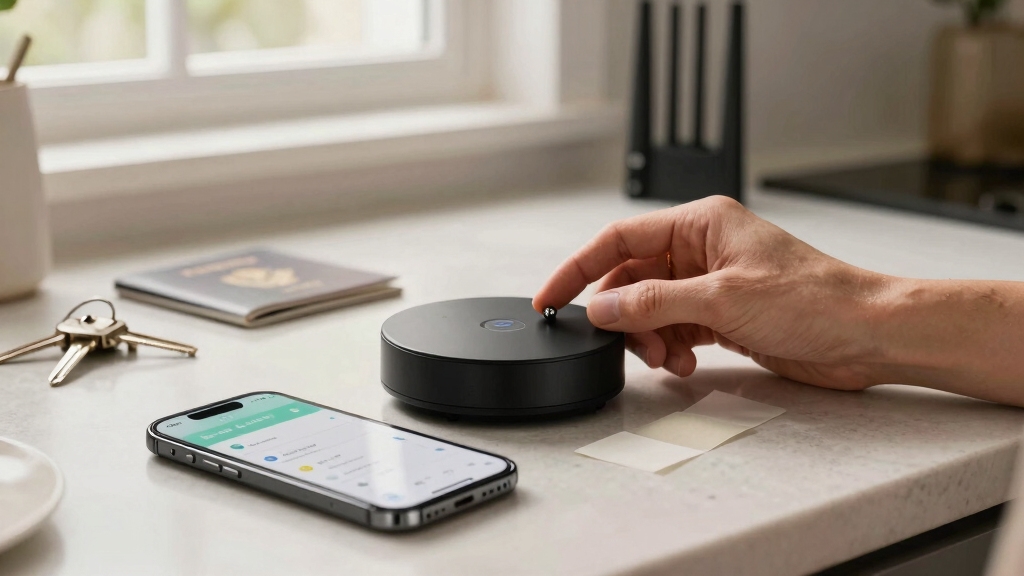
Before setting up your Ring Alarm system, make sure you download or update the Ring – Always Home app on your device.
Ensure you have the latest Ring – Always Home app ready before beginning your Ring Alarm system setup.
Next, create or sign in to your Ring account within the app. You’ll need to enter your home or property address, name, email, and a secure password to complete account setup.
Prepare your home by identifying a central location with a reliable power source and strong Wi-Fi or Ethernet connectivity for the base station.
Make certain you have access to an electrical outlet and strong network signal in this spot. Organizing these details beforehand accelerates setup and guarantees seamless device registration.
Completing these steps precisely sets the foundation for a smooth installation and peak system performance.
For optimal protection, consider placing the base station where it can maintain reliable wireless sensor connections throughout your home.
Set Up Your Base Station and Connect to Wi-Fi
Sure! Here’s a more conversational version:
First off, find a central spot for your base station—somewhere close to a power outlet and a strong Wi-Fi signal. This way, you’ll ensure the best connectivity possible.
When the app prompts you, just press the pairing button on the base station to kick off the device registration process.
Next, it’s time to connect your base station to your home network. You can either enter your Wi-Fi password or go for a wired connection using Ethernet. Whichever you choose, you’re all set to get started!
Make sure to verify your wireless signal strength at the device location to prevent any connectivity issues during setup.
Base Station Placement
For peak performance, position your Ring Alarm base station in a central location within your home where it has access to a reliable electrical outlet and strong Wi-Fi signal or Ethernet connection.
Avoid placing it near large metal objects, thick walls, or electronic devices that may cause interference.
Elevate the base station off the floor to improve signal distribution.
Make certain the location allows the base station’s siren and alerts to be audible throughout your home.
Confirm the power cable reaches the outlet without strain and verify network connectivity strength before finalizing placement.
Test Wi-Fi speed or Ethernet stability at the site to prevent connection drops.
Proper placement is critical to maintain consistent communication with sensors and maximize system reliability.
Adjust placement as needed based on app feedback during setup.
For optimal communication, ensure the base station is placed away from electronic interference sources that can disrupt signal quality.
Pairing Base Station
Start pairing your Ring Alarm base station by powering it on and launching the Ring app on your mobile device.
In the app, navigate to Menu (≡) → Set Up a Device → Security → Ring Alarm.
Follow the prompts to register your base station and initiate the pairing process.
Press the pairing button on the base station to make it discoverable. The app will detect the device, confirming successful pairing.
Key points to remember:
- Place the base station centrally for optimal coverage.
- Make certain the base station is plugged into a power source.
- Keep your mobile device near the base station during setup.
- Follow app instructions precisely to avoid pairing errors.
After pairing, you’ll proceed to connect the base station to your home network. The base station typically supports Wi‑Fi and Bluetooth connectivity to ensure seamless communication during operation.
Connecting To Wi-Fi
Once your base station is paired, you’ll need to connect it to your home network to enable communication with the Ring app and cloud services.
Open the Ring app and follow the prompt to select your Wi-Fi network from the list of available connections. Enter your Wi-Fi password carefully to avoid errors.
If you prefer, you can connect the base station via Ethernet cable for a more stable connection. Confirm the connection status in the app; it will notify you once the base station is online.
Position the base station centrally to guarantee strong Wi-Fi signal coverage for all sensors. If signal strength is weak, consider relocating the base station or using a range extender to maintain reliable connectivity throughout your home.
For enhanced security, ensure your network uses WPA3 encryption to protect data transmission between the base station and connected devices.
Add and Install Ring Alarm Contact Sensors and Motion Detectors
You’ll begin adding Ring Alarm Contact Sensors and Motion Detectors by activating each device, typically done by removing a plastic battery tab. This powers the sensor and prepares it for pairing. Next, follow the app’s prompts to pair each device with your base station.
Mount contact sensors on door or window frames using the included peel-and-stick adhesive, guaranteeing magnet alignment. Place motion detectors in corners or entryways at recommended heights for peak coverage. Secure motion sensors with adhesive backing or screws, depending on surface type.
Avoid obstructions that could block sensor signals or trigger false alarms. Complete each device’s installation before moving to the next, verifying app confirmation of successful pairing. This method guarantees reliable operation within your Ring Alarm system. For wired sensors, ensure the magnet-to-sensor gap is maintained within 10–25 mm to prevent false alarms and ensure accurate detection.
Name Your Devices and Create Access Codes
Once you’ve installed your sensors, it’s a good idea to give each one a clear location name in the Ring app. This way, you can easily identify which device you’re looking at.
Next up, think about creating unique access codes for arming and disarming your system. This helps keep things secure and gives you a personalized touch.
And don’t forget—if you have other household members, you can set up additional codes for them too. This way, everyone can have controlled access without any hassle!
For optimal security, ensure your alarms are installed where audible warnings will be clearly heard, especially in remote bedrooms, following key placement guidelines.
Assign Device Locations
Begin by assigning clear, descriptive names to each device in your Ring Alarm system to simplify identification and management. In the Ring app, label each sensor or component based on its physical location to streamline monitoring and troubleshooting.
Accurate naming helps you quickly pinpoint alerts and maintain system oversight. Use the following guidelines when assigning device locations:
Name door sensors by the door they monitor, e.g., “Front Door” or “Garage Door.” Label window sensors with their corresponding window, such as “Living Room Window.”
Assign motion detectors by room or area, e.g., “Hallway Motion.” For multi-sensor setups, add specifics like “Upstairs Bedroom Window.”
This precise labeling guarantees efficient system control and reduces confusion during alarms or maintenance. Regular device testing and maintenance ensure your system remains reliable and responsive, similar to the recommended monthly testing practices for safety devices.
Set Up Access Codes
Create personalized access codes through the Ring app to securely arm and disarm your Ring Alarm system.
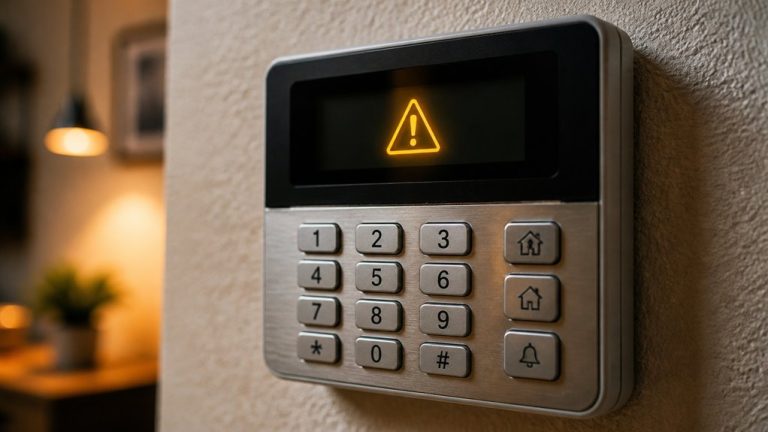
After naming each device by location, navigate to the keypad setup section in the app.
Here, you’ll create a primary access code for yourself.
Choose a unique numeric code that’s easy to remember but hard to guess.
The app also allows you to generate additional access codes for other household members or trusted users, assigning each a distinct name for clarity.
These codes enable shared system control while maintaining security.
To add or modify codes later, return to the keypad settings in the app.
Always test newly created access codes immediately to confirm they arm and disarm the system correctly.
This ensures seamless operation without delays or errors.
For enhanced security, consider using systems with false alarm verification to reduce unnecessary emergency responses.
Optimize Ring Alarm Device Placement and Use Range Extenders
When positioning your Ring Alarm devices, place the base station in a central location with strong network coverage to guarantee reliable connectivity and prime siren audibility.
Proper placement secures peak signal strength between the base station and sensors. If your home layout or size causes weak signals, deploy range extenders to maintain consistent communication.
Consider these placement tips:
Mount contact sensors on doors and windows with minimal obstruction.
Position motion detectors in corners or entryways for maximum coverage.
Avoid placing devices near large metal objects or microwaves that cause interference.
Use range extenders midway between distant sensors and the base station to boost signal strength.
Following these guidelines helps maintain system reliability and secures timely alerts throughout your property.
For optimal performance, avoid placing devices near large metal objects or other sources of interference that can disrupt signal transmission.
Tips for Easy Installation and Managing Your Ring Alarm
To streamline your Ring Alarm installation, keep all device components, labels, and QR codes organized and within reach before starting. This preparation prevents delays during pairing and placement.
Organize all device parts and QR codes beforehand to ensure a smooth and delay-free Ring Alarm installation.
Use the Ring app’s step-by-step instructions to add devices one at a time, scanning QR codes when prompted. Remove plastic battery tabs only when ready to install sensors to conserve power.
Mount contact sensors on clean, flat surfaces using the included adhesive. Position motion detectors in corners or entryways for optimal coverage.
Assign clear, descriptive names to each device within the app to simplify management. Manage access codes carefully, creating unique codes for household members.
Regularly check device connectivity and battery status in the app to maintain system reliability. Following these tips guarantees efficient installation and smooth ongoing management of your Ring Alarm.
Frequently Asked Questions
Can I Integrate Ring Alarm With Other Smart Home Systems?
Yes, you can integrate Ring Alarm with other smart home systems like Amazon Alexa. You’ll need to enable the Ring skill in the Alexa app to control your alarm, devices, and receive notifications via voice commands.
However, direct integration with non-Alexa platforms is limited.
For broader compatibility, use smart hubs or automation platforms like SmartThings or IFTTT. These can link Ring Alarm with various smart devices through custom routines and triggers.
What Is the Battery Life of Ring Alarm Sensors?
You’ll get about 3 to 5 years of battery life from Ring Alarm sensors under normal use. This means you won’t have to worry about frequent replacements, ensuring consistent security.
Always activate sensors by removing the plastic tab during setup. Monitor battery status in the Ring app to stay ahead of any low-power alerts.
Keeping batteries fresh guarantees your system stays reliable and responsive over time.
How Do I Troubleshoot Connectivity Issues With My Ring Alarm?
To troubleshoot connectivity issues with your Ring Alarm, first check that your base station has a strong Wi-Fi or Ethernet connection and is centrally located.
Restart your router and base station. Make certain sensors have active batteries and are within range; use a range extender if needed.
Verify no interference from walls or electronics. In the Ring app, run the device health check to identify offline devices, then follow prompts to reconnect or replace faulty components.
Is Professional Monitoring Included With Ring Alarm?
No, professional monitoring isn’t included by default with Ring Alarm. You’ll need to subscribe to Ring Protect Plus or Ring Protect Pro for 24/7 professional monitoring services.
Once subscribed, the system can alert the monitoring center during emergencies. Without a subscription, you’ll still get notifications and can self-monitor through the app, but no professional responders will be dispatched on your behalf.
You control monitoring preferences within your Ring account settings.
Can I Customize Alert Tones and Siren Volume?
You can customize alert tones and siren volume through the Ring app.
Navigate to the base station settings, then select “Alert Settings” or “Siren Settings.”
From there, adjust the siren volume to your preferred level, typically ranging from low to high.
For alert tones, you can choose different sounds for various notifications.
Make sure to save your changes to apply the custom settings to your Ring Alarm system.
How to Configure a Home Alarm System for Maximum Protection
Congratulations, you’ve just turned your home into Fort Knox, minus the moat and drawbridge.
By prepping your account, syncing your base station, and strategically placing sensors, you’ve mastered the art of home security setup without losing your sanity.
Don’t forget to name devices cleverly and create access codes only your trusted circle knows.
With range extenders in place, your alarm system won’t miss a beat. Because who needs unexpected visitors anyway?
Stay secure, stay savvy.