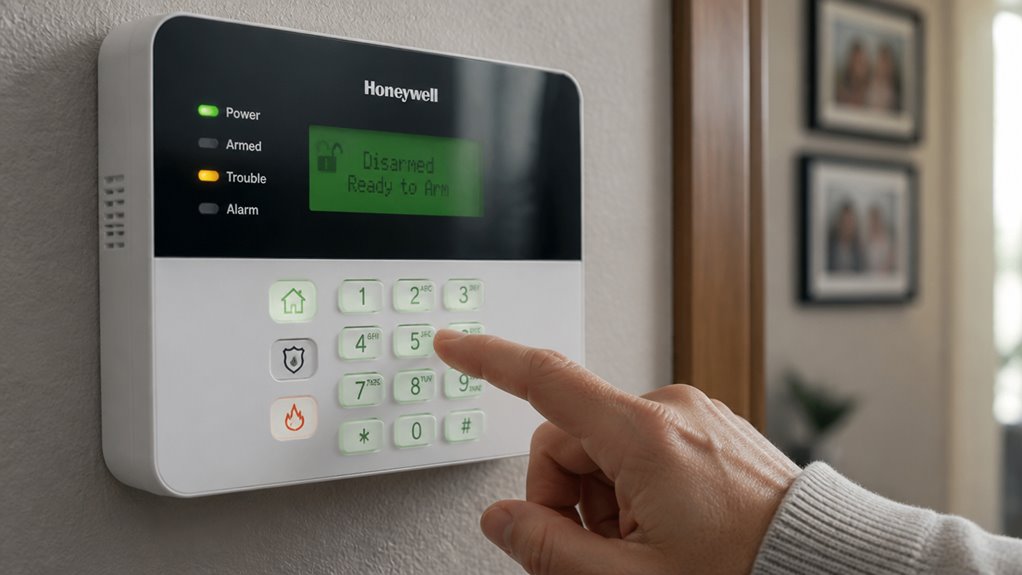

To reset your Honeywell alarm system, start by entering your current master code. Then press “8” and “02” to change it, or cut power and use the “*#” keys for resets without the code.
For installer code resets, power cycle and reprogram using “*99” to exit safely. Full factory resets on VISTA P-Series require the installer code and “*97.”
Always back up settings, avoid power interruptions, and reprogram zones after. Detailed procedures can guide you through each precise step.
Key Takeaways
- Enter the existing master code, press “8”, then “02” to reset and save a new master code if you know the current code.
- To reset without the master code, power cycle the system and press “*” and “#” simultaneously to enter installer mode and set a new master code.
- For installer code reset, power cycle, enter installer mode with “*” and “#”, input a new installer code, then exit programming safely with “*99”.
- Factory reset VISTA P-Series by entering installer code, using the *97 command, then exit with *99; this clears all user codes and zones.
- Always write down new codes, back up settings, and allow about 60 seconds for system reboot after any reset to avoid lockouts or errors.
How to Reset Your Honeywell Master Code When You Know It?
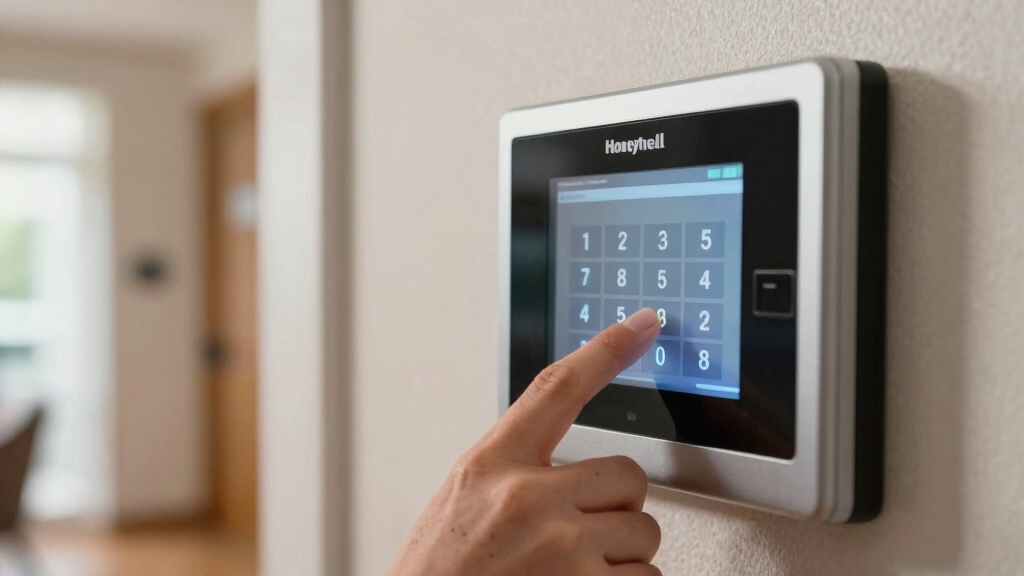
To reset your Honeywell master code when you already know the current one, start by entering the existing master code on the keypad.
Next, press “8” to access the code menu.
Then, enter “02” to select the master user slot number.
At this point, input your new four-digit master code twice, assuring accuracy each time for confirmation.
Listen for a single beep from the keypad, which indicates the system has successfully accepted and saved the new master code. This method guarantees that you maintain control over your alarm system security without losing access.
Follow these steps methodically to avoid errors and assure the master code update proceeds smoothly and efficiently.
Remember, only the master code grants access to programming modes necessary for security changes like resetting codes.
Resetting Honeywell Master Code Without Knowing the Current Code
If you don’t know the current master code, resetting it involves temporarily cutting system power by unplugging the transformer and disconnecting the backup battery.
Reconnect both within 30 seconds to access installer mode. Then, press “*” and “#” simultaneously to display “Installer 20.” Enter “*20” followed by a new four-digit master code to complete the reset.
This method bypasses the unknown master code securely.
Before powering down, always notify your central monitoring station and place the system in test mode to prevent false alarms.
| Step | Action | Timeframe |
|---|---|---|
| Power down | Unplug transformer & disconnect battery | Immediate |
| Power up | Plug transformer & reconnect battery | Within 30 seconds |
| Enter Installer Mode | Press “*” + “#”, then “*20” + new code | Within 30 seconds |
This process guarantees you regain control without the current master code.
How to Reset Honeywell Installer Code?
To reset the Honeywell installer code, the first step is to power cycle the system. This means you’ll need to disconnect the transformer and the battery, then reconnect them. It’s pretty straightforward!
Once you’ve done that, you’ll want to act quickly. Within 30 seconds of restarting, press the “*” and “#” buttons at the same time. This will take you into the installer programming mode.
Now, here’s the fun part! You can enter your new four-digit installer code. Just make sure to save it before you exit programming. And that’s it—you’re all set!
For optimal system performance, it’s important to use fresh non-rechargeable batteries when reconnecting the system to avoid voltage inconsistencies.
Power Cycle Procedure
Begin the power cycle procedure by disconnecting all power sources to the Honeywell alarm system.
First, unplug the main transformer from the wall outlet to cut primary power. Next, open the control panel and disconnect the backup battery to remove secondary power.
Wait approximately 60 seconds to guarantee complete system shutdown. After this pause, reconnect the transformer to restore primary power, then reconnect the backup battery within 30 seconds to maintain system stability.
This sequence reboots the system and clears temporary faults. Immediately after power restoration, press the “*” and “#” keys simultaneously within 30 seconds to access installer programming.
This allows you to reset the installer code if necessary. Always confirm proper system startup before proceeding with further programming or code changes.
If the system continues to beep after resetting, access the trouble menu to identify and address any underlying issues causing alerts.
Accessing Installer Programming
Accessing installer programming requires a specific sequence after powering the system back on. Begin by unplugging the transformer and disconnecting the backup battery to fully cut power.
Once you reconnect the transformer and battery, you have a 30-second window to access installer mode. Follow these precise steps:
Press “**” and “#” simultaneously within 30 seconds of system restart. Confirm the display shows “Installer 20” or a similar prompt.
Enter a new four-digit installer code to replace the old one. Press “**9” to exit programming mode safely.
Make certain you complete this sequence quickly to avoid lockout. This method resets the installer code efficiently without risking system errors or lockout. For maintaining system reliability, it is important to verify functionality after resetting codes or alarms.
Saving New Installer Code
Once you’ve entered installer programming mode following the correct power cycle and keypad sequence, saving the new installer code is straightforward.
Begin by entering your desired four-digit installer code on the keypad. This action replaces the previous code immediately.
To confirm and exit programming mode, press “*99.” Avoid using “*98,” as that can cause system lockout.
After saving, write down the new code and store it securely to prevent future access issues.
Allow the system about 60 seconds to reboot if power was interrupted during the process.
Remember, failing to exit programming mode properly may restrict further programming access.
This method guarantees your Honeywell alarm system’s installer code is updated accurately and securely without compromising system functionality.
For complex systems, it is recommended to seek professional help to ensure proper reset and avoid triggering false alarms.
Factory Reset Options for Honeywell Alarm Systems
Sure! Here’s a more conversational version of the text:
If you need to perform a factory reset on your Honeywell VISTA P-Series system, it’s pretty straightforward. Just enter the installer code and use the *97 command to restore everything to its default settings. Easy peasy, right?
Now, if you’re working with Smart Home base stations, you’ll want to hold down the action button for about 30 seconds. This will kick off the reset process, and then you’ll need to confirm it.
Just a heads up, after you’ve done the factory reset, you’ll have to reprogram your system zones. And don’t forget to securely store your new codes to avoid any lockouts in the future!
Keep in mind that some alarm systems feature dual-path communication to maintain connectivity during resets or outages, which can be a useful feature to consider.
VISTA P-Series Factory Reset
If you need to restore your VISTA P-Series alarm system to its original state, performing a factory reset is the most effective method. This process clears all user codes, zones, and custom settings, returning the system to default configurations.
It is important to use this method cautiously, as bypassing zones temporarily can create vulnerabilities that a full reset would resolve.
To execute the reset, enter the installer programming mode using your installer code (default is 4112 unless changed). Then, input the factory reset command to initiate the process.
Here’s what you need to do:
- Enter installer code + [*] + [97] to start factory reset.
- Wait for three keypad beeps confirming reset success.
- Master code resets to default 1234. Installer code reverts to 4112.
- All user codes and zones are erased, requiring reprogramming.
- Remember that zone bypassing typically clears after disarming and may need reapplication if not fully reset.
Proceed methodically to avoid system lockout.
Smart Home Base Reset
Resetting a Smart Home Base station requires holding down the action button located at the top of the device for about 30 seconds to initiate the factory reset process.
During this time, the base station will display a confirmation message prompting you to verify the reset request. Press the action button again to confirm and start the factory reset.
This process restores the device to its original factory settings, erasing all personalized configurations. After the reset, the base station will reboot, and you’ll need to reconfigure your system from scratch.
Make sure you’ve backed up any critical settings beforehand, as the reset can’t be undone. Follow this methodical approach precisely to avoid incomplete resets or system errors.
Unlike some devices, the reset must be done physically at each unit and cannot be performed remotely through an app, ensuring secure factory default configuration.
Post-Reset System Steps
After completing a factory reset on your Honeywell alarm system or Smart Home Base station, several important steps guarantee the system functions correctly and securely. You must methodically reconfigure settings to avoid vulnerabilities or lockouts. Follow these critical post-reset actions:
- Write down new master and installer codes. Store them securely to prevent lockout.
- Reprogram all system zones and user codes to restore full protection.
- Use the “99” command to exit programming mode properly. Avoid “8” to prevent lockout.
- Allow at least 60 seconds for the system to reboot after disconnecting power sources.
- Verify system status and functionality through keypad feedback and test alarms.
It is also advisable to inspect the battery condition and ensure consistent power delivery to avoid false alarms after reset.
These steps make certain your Honeywell system operates reliably and maintains security after a factory reset.
How to Factory Reset Honeywell VISTA P-Series Systems?
When you need to restore your Honeywell VISTA P-Series system to its original settings, performing a factory default reset is the most effective method.
Begin by entering the installer code on the keypad, 4112 by default unless it’s been changed.
Once in programming mode, enter the command “*97” to initiate the factory reset. The system will emit three beeps to confirm successful completion.
This reset restores the master code to 1234, the installer code to 4112, and clears all user codes and programmed zones.
After the reset, make sure to reprogram your zones and set new codes. Always exit programming mode properly by pressing “*99” to avoid lockout and allow the system to reboot fully before further use.
How to Factory Reset Honeywell Smart Home Base Stations?
To factory reset your Honeywell Smart Home Base Station, press and hold the action button located at the top of the device for about 30 seconds. The base station will display a confirmation message requiring your verification. Press the action button once more to confirm the reset.
This procedure restores the device to its original factory settings, erasing all custom configurations.
Keep in mind:
The reset process takes a few moments to complete. All user settings, including network connections, will be lost. Device reconfiguration is mandatory after reset.
Make sure power remains uninterrupted during the reset. This action can’t be undone; back up important settings beforehand.
Following these steps carefully guarantees a clean slate for your base station’s operation.
Essential Steps After Resetting Your Honeywell Alarm System
Although resetting your Honeywell alarm system restores default settings, you’ll need to carefully reprogram user codes, system zones, and preferences to guarantee proper functionality.
Start by entering the installer programming mode using your installer code. Recreate all system zones accurately to reflect your security layout.
Next, assign new user codes, including the master code, ensuring they’re securely documented. Avoid using the “*98” exit command, as it can cause system lockout; always exit programming with “*99”.
After reprogramming, allow at least 60 seconds for the system to reboot fully. Verify all sensors and zones respond correctly to the control panel.
Finally, keep a record of all codes and settings in a secure location to prevent lockouts and facilitate future maintenance or changes.
Frequently Asked Questions
Can I Reset My Honeywell Alarm System Remotely via an App?
You generally can’t reset your Honeywell alarm system remotely via an app alone.
Resets typically require physical interaction with the keypad or power cycle involving the transformer and backup battery.
However, you can use Honeywell’s Total Connect app to arm, disarm, or monitor your system remotely.
For full system resets, you’ll need to follow manual procedures on-site, as remote reset capabilities aren’t supported through standard mobile applications.
How Do I Change User Codes Without Resetting the Master Code?
To change user codes without resetting the master code, enter the current master code on the keypad.
Press “8” to access the code menu, then press the user slot number you want to modify (e.g., “03” for user 3).
Input the new four-digit user code twice to confirm.
A single beep signals the update.
This process changes individual user codes without affecting the master code or other settings.
What Should I Do if My Keypad Is Unresponsive During Reset?
If your keypad is unresponsive during reset, first check for power issues by unplugging the transformer and disconnecting the backup battery. Wait 60 seconds before reconnecting both to ensure a full power cycle.
If the keypad still won’t respond, verify wiring connections and keypad integrity. You might also try accessing installer mode within 30 seconds after power restoration.
Persistent issues may require professional diagnostics or keypad replacement.
Can a Reset Erase All Event History and Logs?
Yes, performing a factory default reset on your Honeywell alarm system will erase all event history and logs.
This process clears user codes, zones, and resets master and installer codes to defaults.
Keep in mind, routine master or installer code resets don’t erase logs.
However, a full factory reset removes all stored data, so you’ll lose event history.
Always back up important information before proceeding with a factory reset.
How Do I Update Firmware After a Factory Reset?
To update firmware after a factory reset, first make certain your Honeywell system is fully powered and connected to the network.
Access the installer programming mode using your installer code. Then, use the Honeywell software or keypad commands to initiate the firmware update.
Follow on-screen prompts carefully. Avoid interrupting power during the update.
Once complete, verify the firmware version and reconfigure your system settings as needed to restore full functionality.
Keep Your Honeywell Security System Running Smoothly
Resetting your Honeywell alarm system requires careful, clear, and calculated steps to secure your setup swiftly. Whether you know your master code or need a factory reset, following precise procedures protects your property and peace of mind.
Remember, methodical maintenance and mindful modifications make managing your system much more manageable. So, stay sharp, stay secure, and systematically safeguard your space with these straightforward, step-by-step solutions.