
You can turn your old iPhone into a security camera by installing a trusted app like Alfred or IP Webcam.
Set it to “Camera” mode while using your new device as the viewer.
Place and mount the iPhone at entry points with a good Wi-Fi signal.
Keep it plugged in to avoid interruptions.
Enable motion detection and alerts to capture important activity without wasting storage.
To get full benefits, including recording and remote access, keep exploring the setup and security tips.
Key Takeaways
- Install a reliable security camera app like Alfred or IP Webcam on both old iPhone and monitoring device, logging in with the same account.
- Set the old iPhone to “Camera” mode and the new device to “Viewer” mode for live streaming and remote monitoring.
- Mount the old iPhone securely at 8–10 feet with a clear, unobstructed view near entry points or valuables.
- Keep the old iPhone plugged into power and connected to stable 2.4GHz Wi-Fi for uninterrupted video streaming.
- Enable motion detection and alerts in the app to trigger recordings and receive instant notifications of movement.
Choose the Best Security Camera App for Your Old iPhone
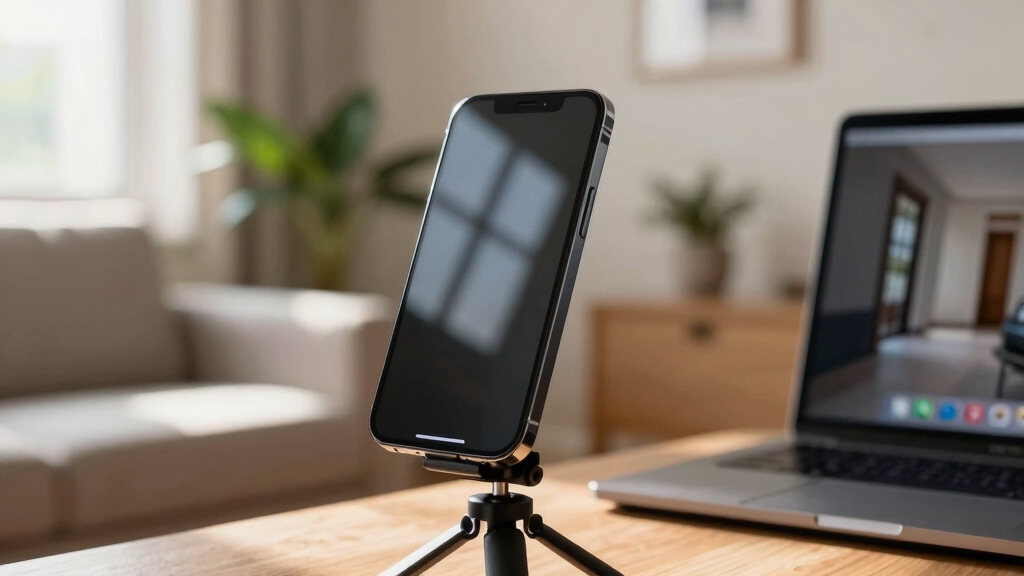
Start by choosing the best security camera app that fits your needs and works seamlessly with your old iPhone.
Popular options include Alfred, Camerito, IP Webcam, and Live Reporter, all available on the App Store.
You’ll want an app that offers reliable streaming, motion detection, and easy setup.
Once you pick an app, download and install it on both your old iPhone (which will act as the camera) and the device you’ll use to monitor the feed.
Make sure you log in with the same account on both devices to sync them properly.
Before moving forward, test the app to confirm it connects smoothly and streams video without lag or interruptions.
This guarantees your security setup will be effective and hassle-free.
For enhanced home security, consider devices with motion-triggered recording to conserve battery and storage.
Set Up Your Old iPhone Camera and New Device Viewer
To set up your old iPhone as a security camera and your new device as the viewer, first open the security app on both devices and log in using the same account credentials.
On the old iPhone, select the “Camera” mode to activate video streaming.
On your new device, choose the “Viewer” mode to monitor the live feed.
Make sure both devices connect successfully and confirm the video stream is visible on the viewer.
Test audio and motion detection features if available.
Keep your old iPhone plugged into power to avoid interruptions.
Adjust settings like video quality and notifications within the app for peak performance.
Once paired and functional, your setup is ready for positioning and use, allowing you to monitor your space remotely and securely.
For optimal coverage, position the old iPhone camera at a height of at least 10 feet with a slight downward angle to maximize the field of view and reduce tampering risk camera height and mounting.
Pick the Best Spots to Place Your Security Camera
After setting up your old iPhone as a camera and confirming the live feed works on your new device, it’s time to decide where to position the security camera.
Focus on main entry points like front and back doors, where intruders are most likely to appear.
Consider areas with valuables, such as living rooms or home offices, and spaces where pets or children spend time.
If you have multiple old devices, use them to cover different vulnerable spots for broader monitoring.
Make sure your chosen locations have a strong, stable Wi-Fi connection to maintain uninterrupted streaming.
Pick spots that offer a clear, unobstructed view of the area without risking the phone’s safety or making it too obvious to visitors or intruders.
Mount the camera at an optimal height of 8 to 10 feet with a slight downward angle to maximize coverage and reduce tampering risk.
Mount and Position Your iPhone for Clear, Stable Video
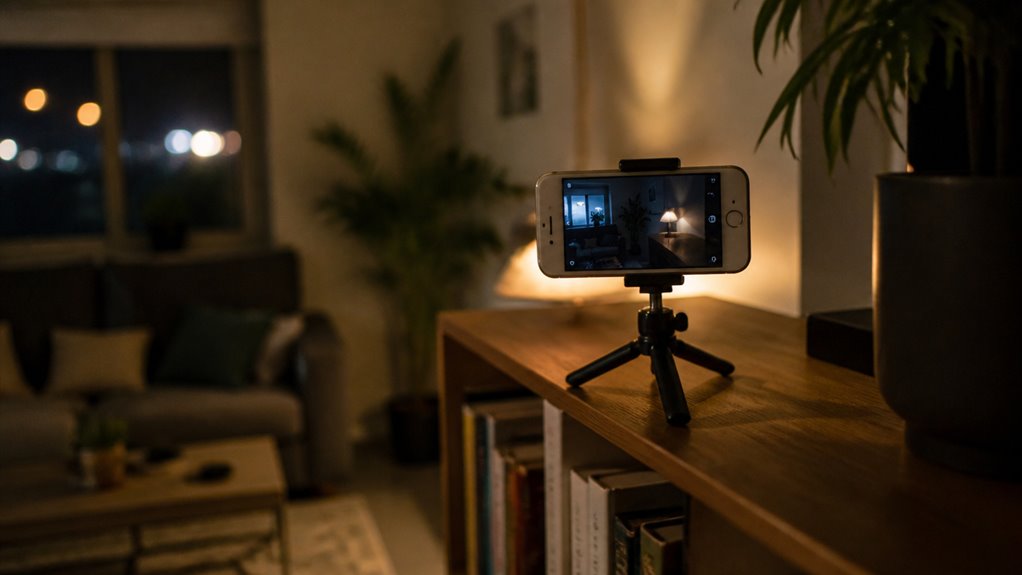
Secure your old iPhone firmly using a tripod, phone stand, or suction-cup mount to guarantee steady, clear video footage.
Avoid hand-holding the device, as even minor shakes can blur the video and reduce its usefulness.
Place the mount on a flat surface or attach it to a window or wall, ensuring the camera lens faces the monitored area directly.
Adjust the angle carefully to cover key entry points or valuables while minimizing obstructions.
If possible, use a wide-angle lens attachment to expand the field of view.
Position the iPhone discreetly to avoid drawing attention but keep it accessible for adjustments.
Check the video preview on your viewing device to confirm the camera captures the desired area clearly and remains stable throughout the recording.
Mount the iPhone at an optimal height of 8–10 feet with a slight downward angle to improve facial recognition and reduce tampering risks.
Keep Your Old iPhone Security Camera Powered and Connected
Keeping your old iPhone continuously powered is essential for uninterrupted security monitoring. Connect it to a reliable power source using a Lightning or USB-C cable to prevent battery drain.
Consider using an extended cable to position the phone conveniently near an outlet without limiting camera placement. Enable Low Power Mode on the device to extend battery life while keeping the camera active.
Within your chosen security app, activate any available power-saving options to dim the screen and lock the phone without stopping the video feed.
Make sure the iPhone stays connected to a stable Wi-Fi network to guarantee a constant live stream. Regularly check cables and connections to avoid accidental disconnections that could interrupt your security coverage.
For optimal connectivity, ensure the device is linked to a stable 2.4GHz Wi-Fi network to maximize signal strength and prevent dropouts.
Turn On Motion Alerts and Security Features
While your old iPhone streams live video, turning on motion alerts and security features lets you stay instantly informed about any activity in the monitored area.
Open your security camera app and locate the motion detection settings. Enable motion alerts so the app notifies you immediately when movement is detected.
Adjust sensitivity to reduce false alarms caused by small pets or shadows. Activate any available low power modes within the app to conserve battery without interrupting monitoring.
Some apps also let you enable sound detection or two-way audio for added security. Make sure to test the alerts to confirm they work properly.
Using custom detection zones can help focus alerts on important areas and reduce unnecessary notifications.
Watch and Record Live Security Camera Video Remotely
You can easily watch your old iPhone’s security camera feed live from anywhere, whether you’re using your new phone or a computer. It’s super convenient!
Most apps out there even let you record video clips, which is great because you can play them back later for a quick review.
Just remember to ensure that both your devices are connected properly. Also, double-check that the app’s permissions allow for remote streaming and recording. That way, you won’t miss a thing!
Using motion-activated recording can help conserve storage space and extend battery life when recording video clips.
Remote Live Stream Access
Frequently, accessing your security camera’s live stream remotely allows you to monitor your home in real time from anywhere using your new phone, tablet, or computer.
To set this up, make sure the security app is installed on both your old iPhone (camera) and your monitoring device, and that both are logged into the same account.
Keep your devices connected to a stable Wi-Fi network for smooth streaming. The app’s viewer mode lets you watch live footage anytime, providing peace of mind when you’re away.
Use the app’s viewer mode on multiple devices for flexible monitoring.
Verify consistent Wi-Fi connectivity to avoid stream interruptions.
Enable motion detection alerts to stay informed in real time.
Integrate with apps like Apple Home for added convenience and control.
For enhanced security, regularly update your device’s firmware and enable two-factor authentication on your accounts.
Recording And Playback Options
Recording and playback options often enhance your ability to review important events captured by your old iPhone security camera. Most security apps let you record live video remotely, so you can save clips of suspicious activity directly from your monitoring device.
Simply tap the record button in the app’s viewer mode to capture footage in real time. You can also access recorded videos later on your phone or computer, making it easy to replay incidents whenever needed.
Some apps support cloud storage or local saving, giving you flexibility in managing recordings. Don’t forget to enable motion detection alerts, which automatically trigger recording when movement is detected, ensuring you don’t miss critical moments.
These features turn your old iPhone into an efficient, remotely accessible security camera system. Using motion-activated recording can significantly reduce data usage compared to continuous recording, making your setup more bandwidth-friendly.
Frequently Asked Questions
Can I Use Cellular Data Instead of Wi-Fi for Streaming?
Yes, you can use cellular data instead of Wi-Fi for streaming, but keep in mind it may consume a lot of data quickly.
Streaming video requires a stable and fast connection, so cellular networks might cause lag or interruptions, especially with weaker signals.
To avoid unexpected charges, monitor your data usage closely or consider an unlimited plan.
Also, make certain your security app supports streaming over cellular networks for smooth operation.
How Do I Secure My Security Camera App Account From Hacking?
You protect your security camera app account by choosing strong passwords, enabling two-factor authentication, and regularly updating your credentials.
You monitor account activity, log out from unused devices, and avoid sharing login details.
You keep the app and phone software updated, use secure Wi-Fi networks, and consider setting up alerts for suspicious logins.
These steps strengthen your defenses and reduce the risk of unauthorized access to your camera feed.
Will Using an Old iPhone as a Camera Affect Its Warranty?
Using an old iPhone as a security camera typically won’t affect its warranty, as long as you don’t physically alter or damage the device.
Apple’s warranty covers hardware defects, not how you use the phone. However, if you jailbreak or modify the software, that could void the warranty.
Just make sure to keep the device in good condition and avoid unauthorized modifications to maintain your warranty coverage.
Can I Integrate Multiple Old iPhones Into One Security System?
Absolutely, you can create a harmonious network by integrating multiple old iPhones into one security system.
Just install the same security app on each device, set each old iPhone as a camera, and your main device as the viewer.
This lets you monitor various spots seamlessly. With proper placement and Wi-Fi coverage, you’ll have an efficient, coordinated setup that covers multiple areas.
Enhancing your home’s overall security is easy without a hitch.
How Do I Clean and Maintain the Old iPhone Camera Lens?
You clean the old iPhone camera lens gently using a microfiber cloth to avoid scratches.
Avoid using harsh chemicals; instead, lightly dampen the cloth with water or a screen-safe cleaner if needed.
Regularly check for dust or smudges, especially before important recordings.
Keep the lens covered or stored safely when not in use to prevent dirt buildup.
Proper maintenance guarantees clear, sharp video footage for your security setup.
Secure Your Space Without Buying New Equipment
Now that you’ve turned your old iPhone into a security camera, you’ve transformed yesterday’s tech into today’s guardian.
With the right app, perfect placement, and motion alerts, you’re not just watching; you’re protecting.
Remember, your old device isn’t just a phone; it’s a silent sentinel keeping an eye when you can’t.
So, power it up and let peace of mind ring louder than ever before.
Your home’s safety is now in your hands.