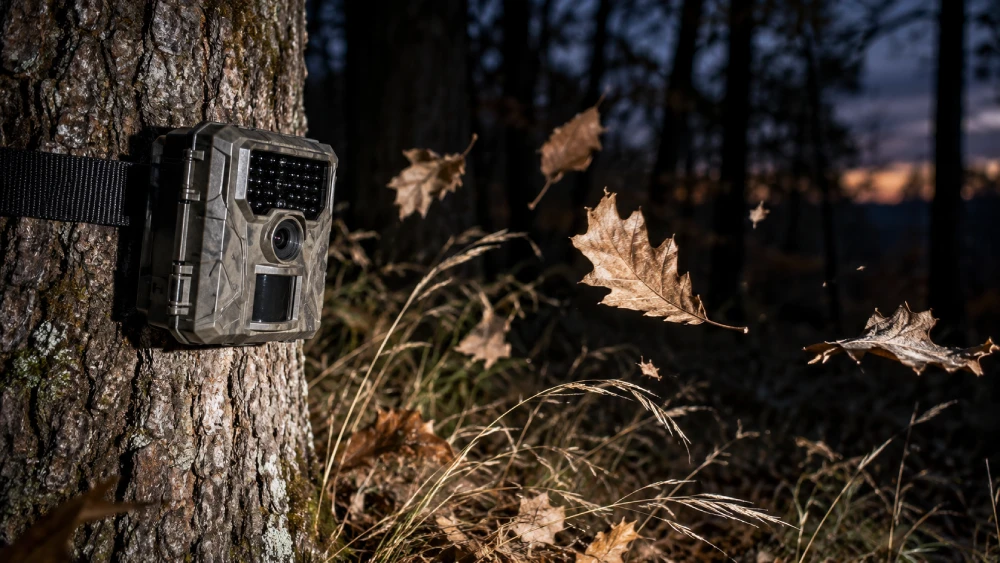

Motion Freeze on a Moultrie camera sharply reduces motion blur by shortening night exposure time to around 1/20 second and triggering a faster infrared flash burst.
You’ll capture crisp, clear images of fast-moving wildlife, especially in low light, though the flash range decreases, making distant subjects dimmer.
This tradeoff improves detail and avoids whiteout on close subjects. Motion Freeze is found in the photo/video menu on select models like the Edge 3 Series.
Keep exploring to master its settings and ideal use.
Key Takeaways
- Motion Freeze on Moultrie cameras shortens exposure time to about 1/20 second, reducing motion blur in night photos.
- It activates a faster infrared flash burst, also called “Fast Flash,” prioritizing image clarity over flash range.
- The feature is ideal for capturing sharp images of fast-moving nocturnal wildlife.
- Motion Freeze decreases illumination distance, so closer camera placement and fresh batteries improve results.
- It can be toggled on/off via the photo or photo/video menu and requires a camera restart to apply.
What Motion Freeze Means on a Moultrie Camera?
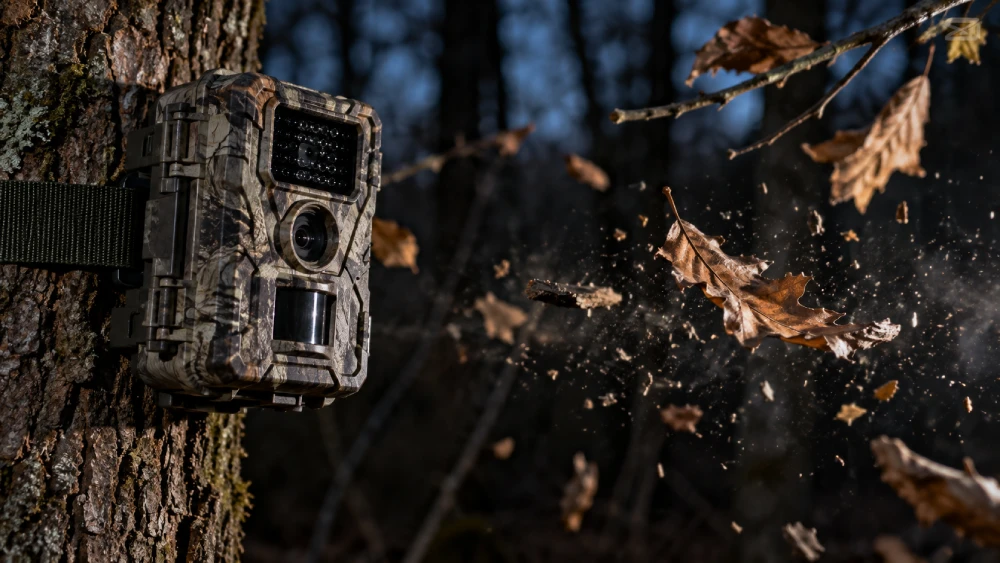
When you enable Motion Freeze on a Moultrie camera, you activate a specialized setting designed to enhance night photography clarity by reducing motion blur.
This feature shortens the camera’s exposure time at night, minimizing the smear effect caused by moving animals or objects.
Technically, the camera switches to a faster shutter speed, often around 1/20 second, compared to longer exposures used when Motion Freeze is off.
Moultrie also refers to this as “Fast Flash,” indicating the quicker burst of the infrared flash to freeze motion effectively.
You’ll find this option in photo or photo/video menus on several Moultrie models, particularly the Edge 3 Series.
Enabling Motion Freeze prioritizes sharper night images, making it ideal when clarity trumps illumination distance.
For users with alarm systems, it is important to ensure that any connected devices are powered down safely by following power shutdown procedures before maintenance or adjustments involving your camera system.
How Motion Freeze Changes Night Exposure Settings?
Although night photography on Moultrie cameras typically involves longer exposure times to maximize illumination, enabling Motion Freeze markedly alters this by shortening the exposure to approximately 1/20 of a second.
When you activate Motion Freeze, the camera reduces the shutter speed considerably compared to the usual maximum of 1/8 second. This minimizes motion blur from moving subjects.
This rapid exposure demands a stronger, quicker flash pulse, often labeled as “Fast Flash” in menus, to maintain image brightness despite the reduced light capture time.
As a result, you get crisper images of nocturnal wildlife in motion. The camera’s firmware dynamically adjusts flash duration and intensity to compensate for the shortened exposure, ensuring that your night photos remain well-lit but sharply detailed.
However, similar to other cameras, night vision performance can decline beyond close range, with detail loss noticeable past 10–15 feet due to sensor limitations and infrared LED effectiveness, a factor to consider when comparing night photography solutions with infrared night vision.
The Tradeoffs Between Clarity and Flash Range at Night
Since Motion Freeze shortens the exposure time and triggers a faster flash, you’ll notice a pronounced tradeoff between image clarity and flash range during nighttime shooting.
With Motion Freeze on, the camera uses a rapid shutter, around 1/20 second, minimizing motion blur on fast-moving subjects. However, this faster flash reduces the effective illumination distance, so distant animals or objects may appear darker or underexposed.
Enabling Motion Freeze sharpens fast-moving subjects but limits flash range, causing distant objects to appear darker.
Conversely, turning Motion Freeze off extends flash duration and exposure, increasing brightness and flash reach up to roughly 1/8 second exposure, but motion blur becomes more noticeable.
You must balance sharper images with limited range against longer flash reach with potential blur. This tradeoff is critical when configuring your Moultrie camera for specific nocturnal conditions and target distances.
Additionally, environmental factors like fog and moisture can scatter infrared light and reduce flash effectiveness, further impacting nighttime image clarity and range, as detailed in infrared illumination effectiveness.
When to Use Motion Freeze for Wildlife Photos?
Choose Motion Freeze on your Moultrie camera whenever capturing sharp, detailed images of fast-moving wildlife at night is your priority. This setting shortens exposure time, minimizing motion blur on animals darting through your frame.
You’ll want to enable it especially when:
- Tracking nocturnal species with quick, erratic movements
- Documenting behaviors requiring clear, crisp photo evidence
- Shooting in dense cover where animals move rapidly
- Prioritizing image clarity over illumination distance
- Avoiding whiteout effects on close-range subjects
Adjusting camera settings to balance image clarity and power consumption helps extend battery life in remote setups, improving overall reliability with energy-efficient video compression.
Moultrie Models With Motion Freeze and Menu Location
When you explore Moultrie trail camera models, you’ll find that Motion Freeze is available primarily on the Edge 3 Series. Similar settings are present on models like the D-444, M-80XT, M-990i, and P-150.
On these cameras, Motion Freeze often appears in the photo or photo/video configuration menus, sometimes labeled as “Fast Flash.” Depending on the model, it may default to ON or OFF, but you can toggle it via menu buttons.
For example, the D-444 and M-80XT place it within their photo settings, while the M-990i and P-150 include it in combined photo/video menus.
Confirming your choice requires steering through the camera’s menu interface, where you’ll see options clearly marked to indicate the faster shutter exposure that reduces motion blur during night capture.
For optimal results, it’s important to test camera placement to ensure clear motion detection and minimal image blur before finalizing your setup.
How to Use Motion Freeze With Your Trail Camera Setup?
To get Motion Freeze up and running on your Moultrie camera, start by diving into the photo or photo/video settings. You’ll want to select the Fast Flash option. This step is crucial!
Now, let’s talk about exposure settings. Motion Freeze really does its magic by shortening the shutter time to about 1/20 second. This helps reduce blur, which is fantastic, but keep in mind it also limits your flash range. So, finding the right balance is essential.
When you’re aiming for those perfect night shots, it’s all about optimizing your images. You want sharper pictures, but you also need enough light for clear visibility. Depending on your trail conditions and what you’re hoping to capture, you might need to tweak those settings a bit. Happy shooting!
Additionally, using a floodlight can greatly enhance illumination and reduce dark spots, improving the overall quality of nighttime images.
Enabling Motion Freeze
Steering the menu with the camera’s buttons, you’ll confirm the setting by toggling it on or off. Note that some models default this feature to ON, while others start with it OFF.
To enable Motion Freeze effectively:
- Navigate to the photo or photo/video configuration screen.
- Locate “Motion Freeze” or “Fast Flash” option.
- Use directional buttons to toggle ON for faster shutter speed.
- Save settings by pressing the menu’s confirm or OK button.
- Restart the camera to make certain settings apply correctly.
This precise control lets you minimize night motion blur for clearer images. Also, ensuring your camera has fresh batteries is crucial to avoid intermittent operation that can disrupt image capture.
Adjusting Exposure Settings
After enabling Motion Freeze, fine-tuning your exposure settings maximizes the clarity benefits during nighttime photography. You’ll want to adjust exposure time carefully to balance sharpness and image brightness.
Typically, with Motion Freeze on, exposure speeds up to 1/20 second, reducing motion blur but limiting light intake. Manually tweaking the ISO or flash intensity can further refine image quality without sacrificing clarity.
| Setting | Effect on Image | Recommended Adjustment |
|---|---|---|
| Exposure Time | Controls motion blur | Use shortest exposure (1/20s) |
| Flash Intensity | Affects brightness | Lower flash to reduce whiteout |
| ISO Sensitivity | Influences noise level | Moderate ISO to avoid grain |
| White Balance | Color accuracy | Auto or custom per environment |
Adjust these settings incrementally to get crisp, clear night shots with Motion Freeze active. Keep in mind that the effectiveness of night vision often depends on using infrared illumination to capture images in low-light conditions.
Optimizing Night Photos
Optimizing night photos with Motion Freeze involves carefully balancing exposure settings to capture sharp, well-lit images of fast-moving wildlife.
You’ll want to enable Motion Freeze to reduce motion blur by shortening the exposure time, usually to around 1/20 second. This adjustment enhances image clarity but slightly limits flash range.
To get the best results, consider these tips:
Position your camera to minimize background clutter, improving focus on your subject.
Use Motion Freeze when animals move quickly through the frame to capture crisp details.
Adjust camera placement for peak flash coverage, compensating for reduced illumination distance.
Test different angles and distances to balance brightness and sharpness.
Regularly review images to fine-tune settings based on your specific environment and target species.
This approach guarantees you capture high-quality night photos without sacrificing clarity.
Keep in mind that like IR LEDs, the camera’s flash or illumination system consumes additional power when active, which can impact battery life during extended night use power consumption.
Frequently Asked Questions
Can Motion Freeze Be Used During Daytime Photography?
You generally can’t use Motion Freeze during daytime photography because it’s designed specifically for night shots.
The feature shortens exposure time to reduce motion blur in low-light conditions, which isn’t necessary when there’s ample daylight.
During the day, your Moultrie camera uses faster shutter speeds naturally, so enabling Motion Freeze won’t have any practical effect or might even disable itself automatically in the camera’s settings menu.
Does Motion Freeze Affect Video Recording Quality?
Motion Freeze primarily optimizes still night photos by shortening exposure to reduce blur.
It doesn’t directly impact video recording quality since video frames have different exposure and shutter speed settings.
You won’t notice the same fast-flash effect or motion clarity improvements in videos.
If you need sharper night videos, you’ll have to adjust other video-specific settings.
Motion Freeze is designed for photo mode and doesn’t alter the camera’s video capture parameters.
How Does Motion Freeze Impact Battery Life?
You might notice up to a 10-15% increase in battery drain when using Motion Freeze. The camera uses faster shutter speeds and a more powerful, quicker flash burst.
This rapid flash and shorter exposure demand more energy per shot, especially at night. If you rely heavily on nighttime photos, expect slightly reduced battery life.
Balancing image clarity and power consumption is key to optimizing your camera’s performance during extended deployments.
Is Motion Freeze Compatible With External Flash Units?
Motion Freeze isn’t typically compatible with external flash units on Moultrie cameras because it relies on the camera’s internal flash timing to shorten exposure and reduce motion blur.
External flashes often operate independently, which can disrupt this synchronization. If you want sharper night images using Motion Freeze, you’ll generally need to use the built-in flash.
For external flashes, you might’ve to disable Motion Freeze to avoid conflicts and achieve proper illumination.
Can Motion Freeze Be Combined With Other Camera Settings Like Time-Lapse?
Yes, you can combine Motion Freeze with other settings like time-lapse on your Moultrie camera.
When you enable Motion Freeze, the camera sharpens night images by reducing exposure time. It still triggers photos based on your time-lapse intervals.
Just make sure your photo or photo/video configuration menus are correctly set. Overlapping features might affect battery life or storage.
Experiment to balance clarity and capture frequency for peak results.
Know When to Use Motion Freeze on Your Moultrie Camera
If you don’t use Motion Freeze on your Moultrie camera, you might as well be chasing ghosts in the dark. Blurry, indistinct shapes tell no story.
This feature sharpens night images by tweaking exposure and flash range with surgical precision. It captures wildlife in crystal clarity.
Sure, it demands tradeoffs, but mastering it transforms your trail camera into a wildlife detective’s ultimate tool. Don’t miss out on this game-changer.