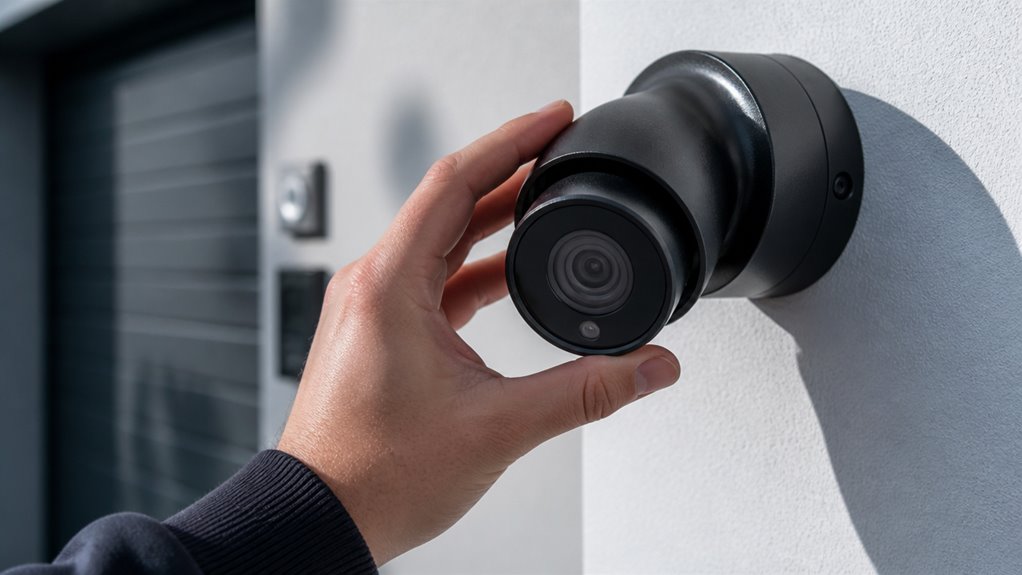

You can turn off your DMSS camera by opening the app, selecting the device, and using options like Privacy Mode or Disarm Mode to pause video and disable alerts without cutting power.
Alternatively, disable recording, motion detection, and notifications in device settings. For a full shutdown, physically disconnect the power or PoE cable, making the camera appear offline in the app.
Make sure you have proper permissions to modify settings. Further details cover reactivation and advanced controls.
Key Takeaways
- Disable the camera via DMSS app using Privacy Mode or Disarm Mode to pause video and AI functions without powering off.
- Turn off recording, motion detection, notifications, and alarm linkage in device settings to stop surveillance without shutting down the camera.
- Physically unplug the power cable or disconnect PoE to completely power off the camera, making it appear offline in DMSS.
- Confirm your user role has permissions to control device settings and shutdown functions within the DMSS app or web interface.
- Check for firmware or model-specific limitations and use the camera’s web interface if app controls are unavailable for turning off the camera.
How to Disable Your DMSS Camera in the App?
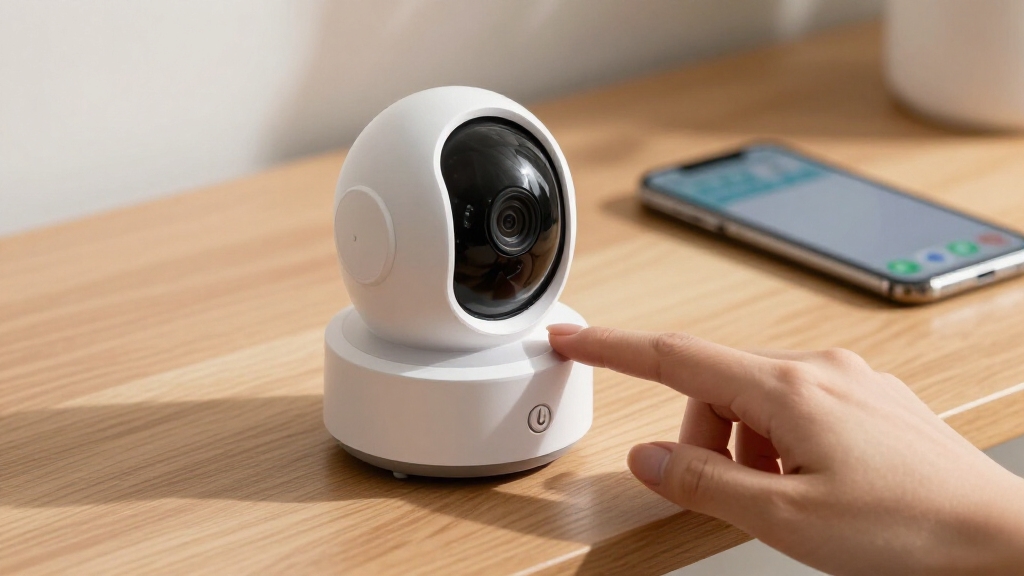
When you want to disable your DMSS camera within the app, start by opening DMSS and selecting the device you wish to manage from the device list.
Enter live view for the chosen channel, then access device settings or the “More Functions” menu.
Access live view for your selected channel, then navigate to device settings or the “More Functions” menu to proceed.
Look for controls labeled Device Status, Power, Status, or Disable.
Depending on your camera model, you may see a direct toggle to switch the camera off or options related to disabling recording, alarms, or notifications.
Some models don’t offer a full power-off option but allow you to pause video or mute alerts.
Carefully adjust these settings to match your needs.
To maintain security while disabling the camera, ensure your device firmware is updated and verify that encryption settings remain enabled during the process.
Using Privacy and Disarm Modes to Limit Camera Activity
If your DMSS camera lacks a full power-off option within the app, you can still limit its activity by enabling Privacy or Disarm modes.
These modes restrict the camera’s functionality without cutting physical power. Here’s how they work:
- Privacy Mode: Hides the camera’s video feed and stops normal monitoring. This effectively pauses surveillance without powering off the device.
- Disarm Mode: Disables AI functions, alarms, sirens, and app notifications on supported models. This reduces automated responses.
- Alarm Linkage Off: Stops camera-triggered alarm actions, lowering alert activity while keeping the camera online.
Use these modes when you need to temporarily restrict camera operation but can’t or don’t want to physically disconnect power.
Reactivate by disabling these modes in the app’s device settings. For enhanced control, consider assigning a static IP address to your camera to maintain consistent network access when toggling these modes.
Turning Off Recording and Motion Detection Features
Although you might not be able to power off your DMSS camera completely through the app, you can still control its recording and motion detection functions to limit activity. Access the device settings from live view, then locate options to disable recording or motion detection. Turning these off stops event capture and alert generation without physically shutting down the device. This method is ideal for temporary inactivity or when admin rights to power off are unavailable. Ensuring a secure Wi‑Fi network is crucial when managing these settings to maintain data integrity and privacy.
| Feature | Location in App | Effect When Disabled |
|---|---|---|
| Recording | Device Settings > Record | Stops video capture |
| Motion Detection | Device Settings > Alarm | Prevents event triggers |
| Alarm Linkage | Device Settings > Alarm | Disables alarm-related actions |
| Notifications | Device Settings > Alarm | Halts app alerts |
| AI Functions | Device Settings > AI | Suspends intelligent monitoring |
How to Physically Power Off Your DMSS Camera?
To physically power off your DMSS camera, you need to interrupt its power supply directly. This method secures a complete shutdown, as software controls often don’t cut electrical power. Follow these steps:
Physically powering off your DMSS camera requires directly cutting its power supply for a full shutdown.
- Unplug the power cable: Disconnect the camera’s adapter or power cord to stop all functions immediately.
- Disable PoE power: If your camera uses Power over Ethernet, turn off the PoE switch or unplug the Ethernet cable supplying power.
- Cut power at the source: For 12V systems, switch off the power supply or remove the power line feeding the camera.
This approach guarantees that the camera is fully off. Remember, the device will appear offline in DMSS once power is cut, confirming the shutdown. For extended equipment reliability, ensure you use outdoor-rated cables and proper power management during installation.
How DMSS Displays Disabled or Offline Cameras?
When a DMSS camera is disabled or loses power, the app clearly marks it as offline. You’ll notice this indicator on the device list or even on the live view screen. But don’t worry; the camera will still be listed. You just won’t get any live video or alerts until it reconnects.
This offline status is super helpful because it confirms that the camera is inactive. So, you can easily verify that everything has been shut down successfully, without needing to do a physical check.
Using backup power solutions like batteries or UPS can help maintain camera operation during outages, preventing offline status.
Offline Camera Indicators
DMSS typically shows cameras as offline immediately after you disable power or network connectivity. This offline status indicates that DMSS has lost communication with the device, confirming a successful shutdown or interruption. You may still see the camera listed in the app, but live video will be unavailable.
Here’s what to expect when a camera appears offline in DMSS:
- The camera feed disappears from live view, replaced by an offline indicator or blank screen.
- The device remains visible in the device list, helping you identify which camera lost connection.
- Restoring power or network will usually bring the camera back online automatically, resuming normal operation.
Monitoring these offline indicators helps you verify device status and troubleshoot connectivity issues effectively. Regularly updating your camera’s firmware can reduce recurring offline problems and improve overall stability.
Disabled Device Appearance
A disabled or offline camera typically appears grayed out or marked with an offline icon within the device list and live view screens. This signals lost communication or intentional shutdown.
This visual cue helps you quickly identify cameras that aren’t actively streaming or recording. When you disable a camera via DMSS settings or cut its power, the app updates the device status accordingly.
If only a single channel is offline, the icon indicates a localized issue, such as cabling or power supply problems. The camera remains listed but inaccessible until reactivation.
Understanding these status indicators guarantees you can verify shutdown success and troubleshoot connectivity issues effectively. Always confirm that the device status reflects your intended changes before concluding the operation. Regular diagnostics and careful placement help maintain continuous, reliable video by minimizing power supply interruptions.
Managing Permissions and Reactivating Your Camera
Regarding managing permissions and reactivating your camera, you need to verify your user account privileges first. Without admin rights, you mightn’t access all shutdown or reactivation controls in DMSS.
Check your role under account settings to confirm permission levels.
To manage permissions and reactivate your camera:
- Confirm your user role permits device control and setting changes within the DMSS app or web interface.
- If your camera was powered down or set to privacy or disarm mode, reverse the action by restoring power or disabling these modes.
- For firmware or model-specific limitations, consult device documentation or access the camera’s web interface for advanced controls unavailable in the app.
Ensure your mobile app has notifications and location permissions enabled to receive real-time alerts related to device status changes.
Following these steps guarantees you regain full camera functionality efficiently.
Frequently Asked Questions
Can I Schedule Automatic Camera Shutdowns in DMSS?
You can’t directly schedule automatic camera shutdowns in DMSS because the app lacks a built-in power-off scheduler.
However, you can set up recording schedules or disable motion detection during certain times to mimic downtime. For true power-off scheduling, you’d need external hardware like a smart plug or PoE switch with scheduling features.
Alternatively, check if your camera’s web interface offers advanced scheduling options beyond DMSS.
Does Disabling the Camera Affect Cloud Storage Billing?
Disabling the camera in DMSS typically stops live monitoring and recording, but it doesn’t always pause cloud storage billing.
Most cloud plans charge based on your subscription and storage capacity, not real-time usage. However, if recording is completely halted or storage is freed, billing impact may occur over time.
Check your specific cloud provider’s policy, as some only bill by storage used, while others charge a flat rate regardless of activity.
How Do Firmware Updates Impact Camera Power Settings?
Firmware updates can modify your camera’s power management features by adding, removing, or refining options like privacy mode or disarm settings. They might reset custom power configurations, requiring you to reapply them.
Sometimes, updates improve energy efficiency or fix bugs affecting power toggling. It’s crucial to review release notes and verify settings after updating to make certain your camera behaves as expected and power-related functions remain consistent with your preferences.
Can Multiple Users Control the Same Camera’s Power State?
Yes, multiple users can control the same camera’s power state if their DMSS accounts have proper permissions.
However, control depends on device model, firmware, and admin settings. Some users may only access limited functions, while others can toggle privacy mode, disarm alarms, or disable recording.
Conflicting commands might cause sync issues, so it’s best to coordinate changes. Full power-off usually requires physical access or admin privileges beyond the app.
Are There Any Safety Risks When Cutting Power to the Camera?
Cutting power to your camera can feel like pulling the plug on the sun itself: sudden and impactful.
You risk data loss if the device is writing to storage during shutdown.
Frequent power cuts may damage hardware or corrupt firmware.
Abrupt disconnection might disrupt network settings, causing reconnection issues.
Always make certain proper shutdown procedures or use app controls when possible to minimize these risks and maintain device integrity.
Choose the Best Way to Turn Off Your DMSS Camera
Turning off your DMSS camera is as simple as flipping a switch.
This gives you control over your privacy like holding the reins of a powerful steed.
Whether you disable it in the app, activate privacy modes, or power it down physically, you can easily pause monitoring when needed.
Managing permissions guarantees you stay in charge, and reactivating the device is just as straightforward.
With these steps, your security adapts seamlessly to your needs.